


How to set up Zoiper with FijoVirtual: SIP account step by step
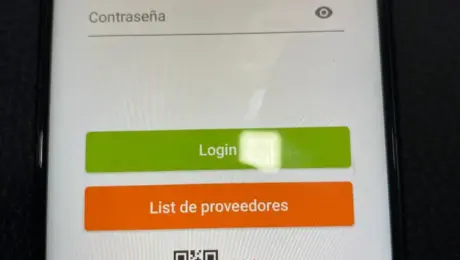
Set up Zoiper on your Android phone to make calls with your FijoVirtual SIP account. This illustrated guide takes you through each step, from opening the app to entering the server and granting phone permissions.
The screenshots show a version of Zoiper for Android. Wording, screen order and offers may vary with the installed version. The screenshots are in Spanish; the Spanish button labels are included below so you can follow them.
Before you start: what you need
- Your FijoVirtual service with a SIP account enabled for calls.
- The SIP username, SIP password and server provided for your account. Your SIP password may differ from your customer portal password.
- An Android phone connected to Wi-Fi or mobile data.
- Zoiper installed from the official app store. Download options are available on the official Zoiper website.
If you do not have your SIP details yet, request them from FijoVirtual before continuing. Zoiper connects to your telephone service; installing it does not create a telephone line or a FijoVirtual SIP account.
1. Open Zoiper and review the terms
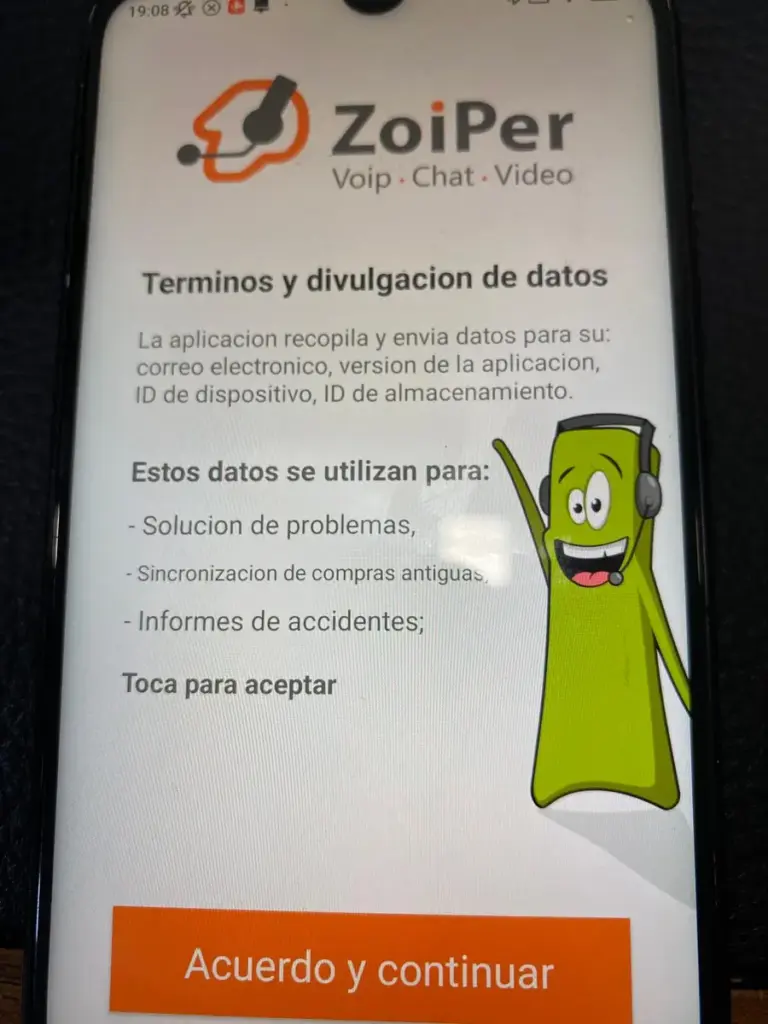
When you open the app, you will see the terms and data disclosure screen («Términos y divulgación de datos»). Read the information and, if you agree, tap Agree and continue («Acuerdo y continuar»).
2. Continue with the free version if that is your choice
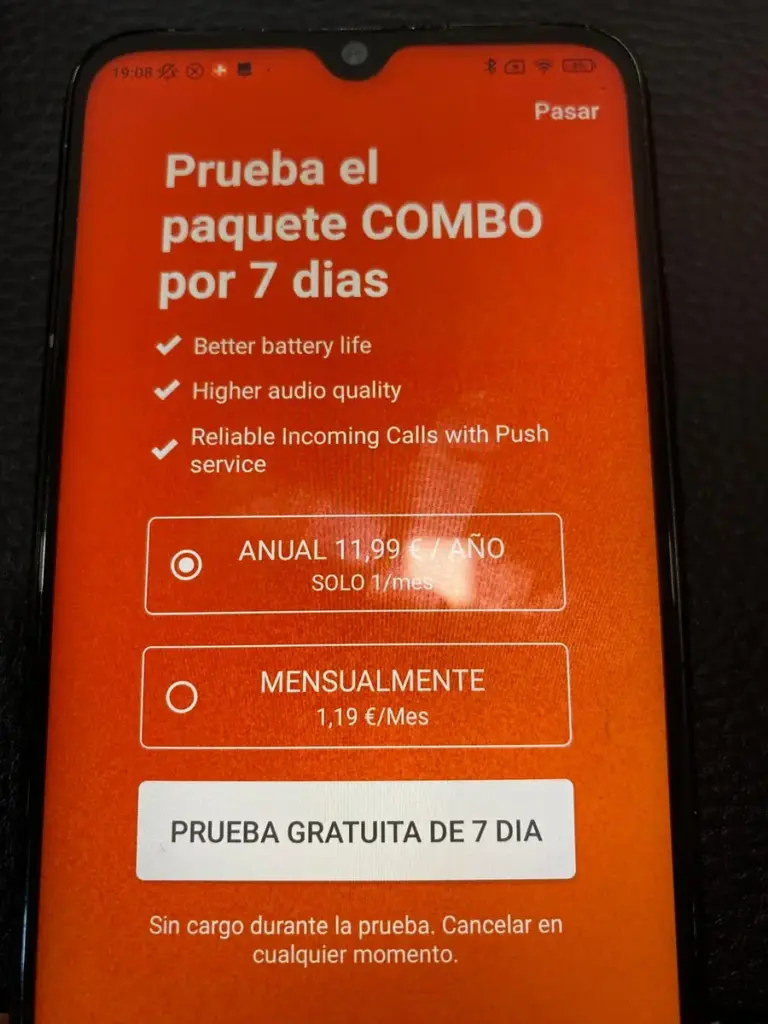
The next screen may offer a COMBO package trial. To follow this guide without activating the trial, tap Skip («Pasar») at the top right. The offers and prices in the screenshot were displayed when the photo was taken; check Zoiper for current terms.
Zoiper then asks whether you are sure you want to use the limited free version. Tap Yes («SÍ») to confirm. Read the question carefully: here, Yes confirms that you want the free version.
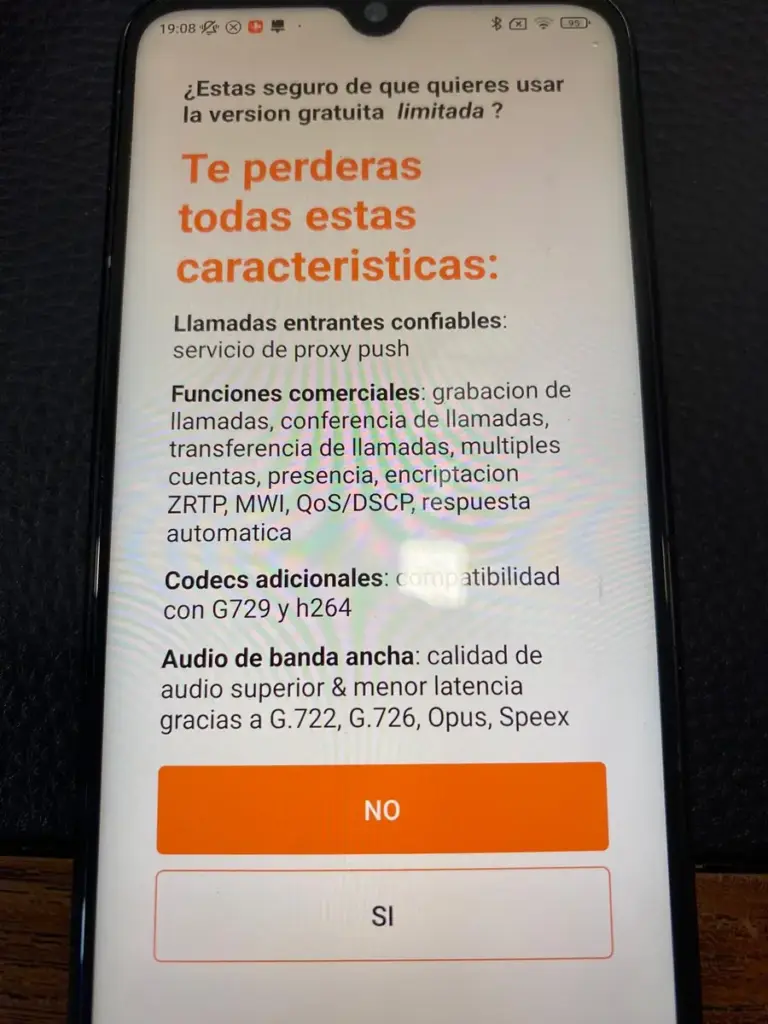
The app states that some features, such as push service for incoming calls, are paid options. This guide focuses on setting up your account and making outgoing calls.
3. Find the account setup screen
You will see the Username @ PBX/VoIP provider («Nombre de usuario @ PBX/proveedor de VoIP») and Password («Contraseña») fields. Enter your FijoVirtual SIP details here.
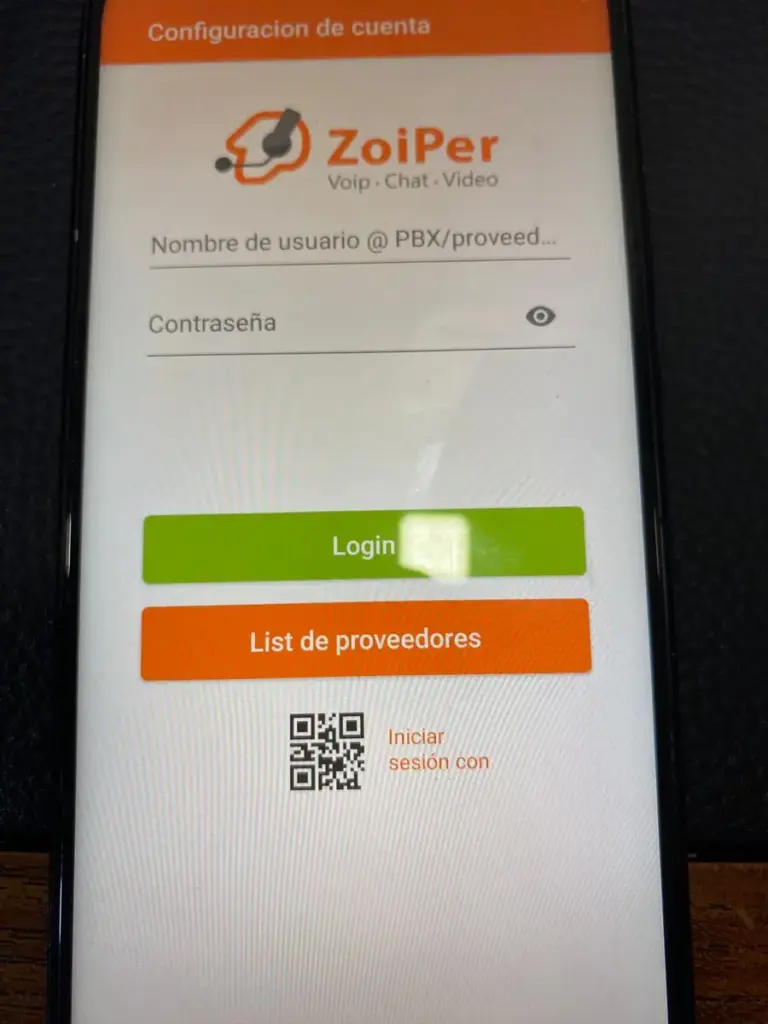
If you already use Zoiper with another account, start from the app menu: Settings → Accounts → Add account (+).
4. Enter your SIP username and password
In the username field, enter the SIP address provided for your account. The example format is YOUR_SIP_USERNAME@host. Replace YOUR_SIP_USERNAME with your actual username, without spaces.
Enter your SIP password in Password («Contraseña»), respecting upper and lower case and symbols. Then tap Login.
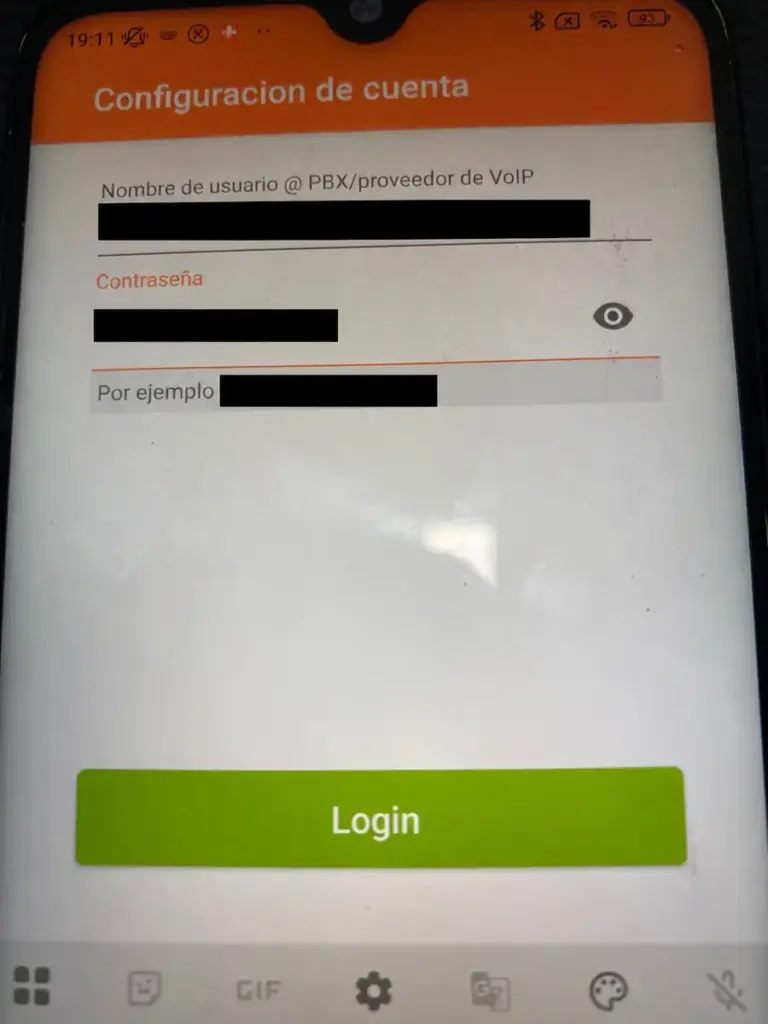
The username and password in the photo are covered with black bars. Always use your own details; do not copy another account’s credentials or share your password.
5. Check the SIP server
Check the domain in Hostname or provider («Nombre de servidor o proveedor»). This example uses host: replace it with the server provided for your account. If you entered the full username with @host, Zoiper may fill it in automatically.
If FijoVirtual has provided a different server for your account, use that value. Enter only the server, without the username or https://. Tap Next («Siguiente»).
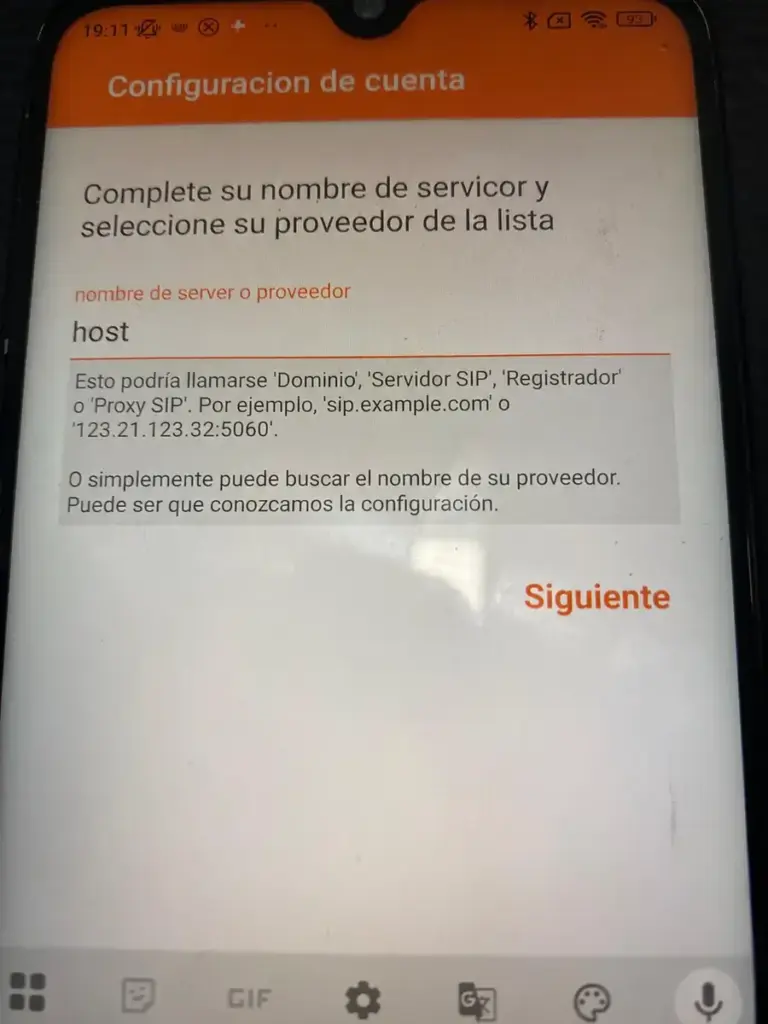
6. Skip the additional proxy unless you have been given one
The next screen lets you add an authentication username or an outbound proxy. In the setup shown, the box is unchecked and the fields are empty: tap Skip («Saltar»).
Complete these fields only if your account instructions include those values.
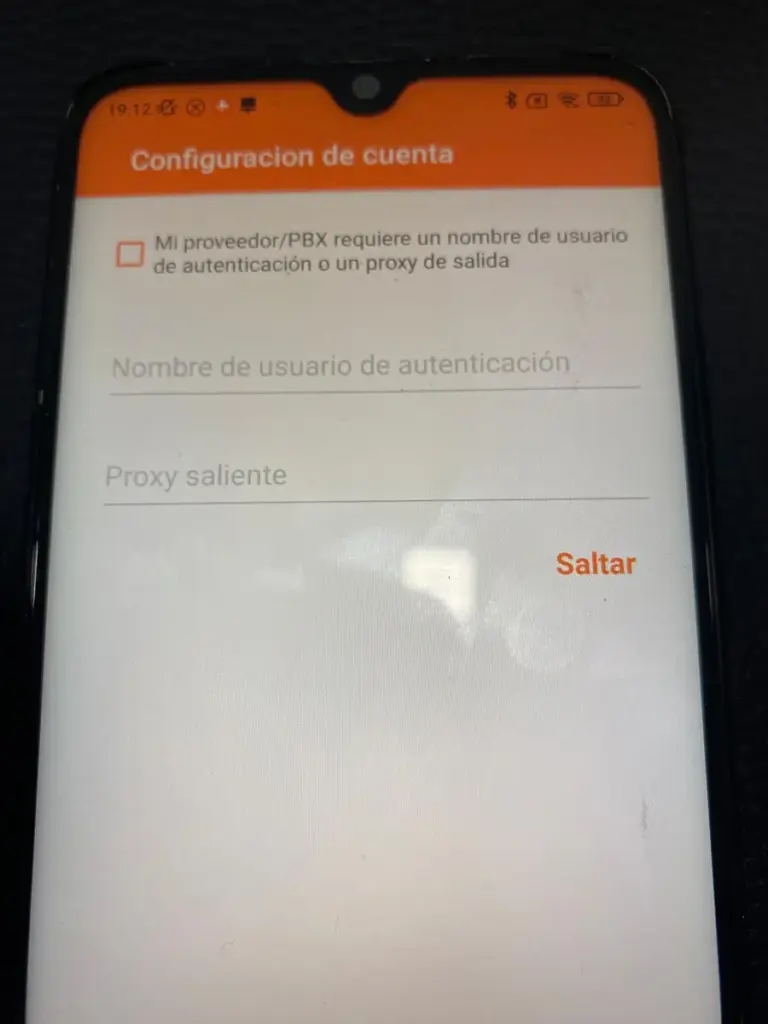
7. Wait for Zoiper to detect the connection
Zoiper checks the available transports. Wait for the search to finish. In this screenshot, SIP TLS already shows Found (recommended), «Encontrado (recomendado)», while another check is still running.
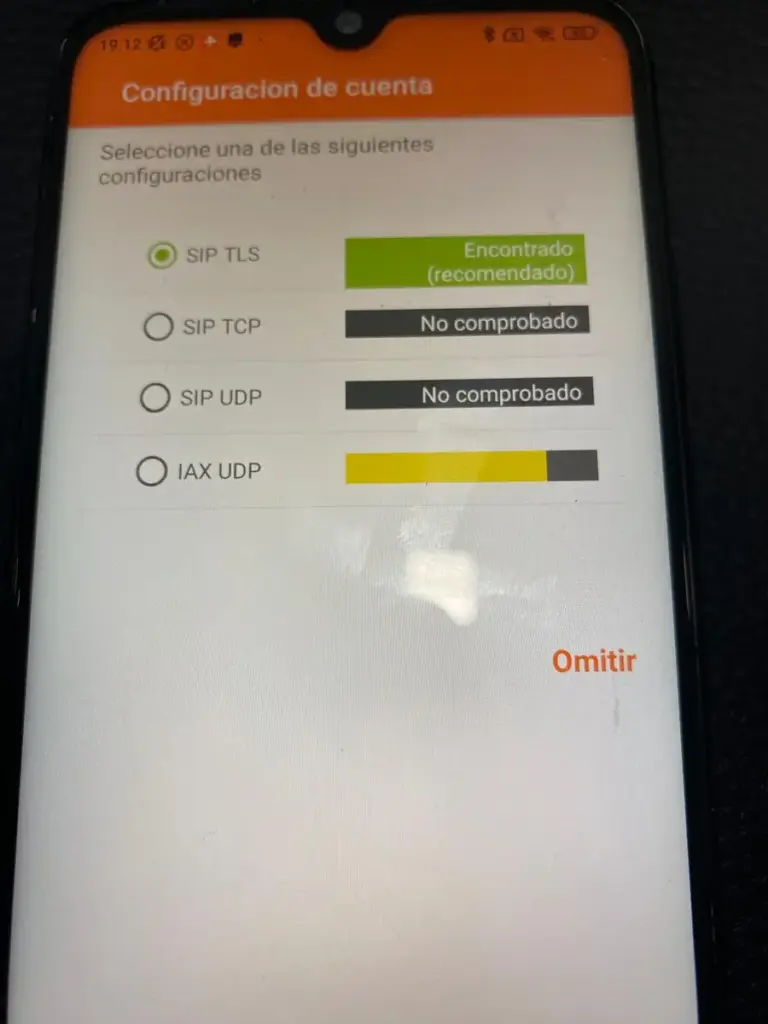
8. Keep SIP TLS selected and finish the wizard
Once detection ends, if your results match the image, leave SIP TLS selected and tap Finish («Terminar»).
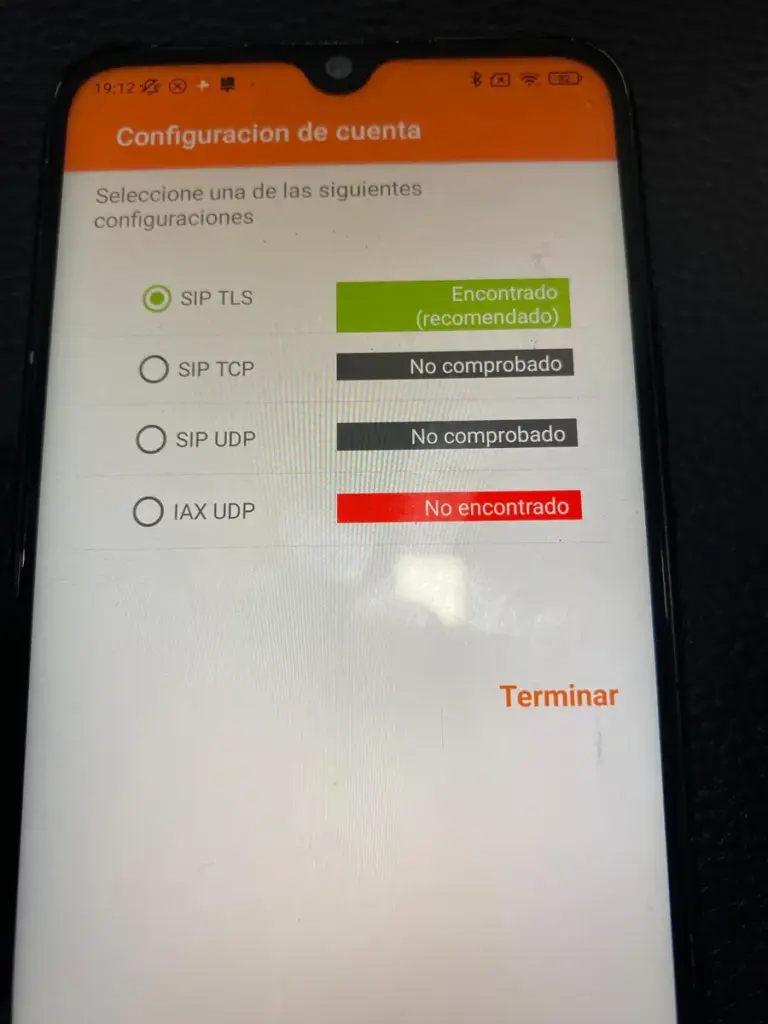
Not found («No encontrado») for IAX UDP does not prevent you from continuing with SIP TLS if it has been found. If no SIP transport is detected, check the server and Internet connection and ask FijoVirtual which transport your account requires.
9. Grant call permissions
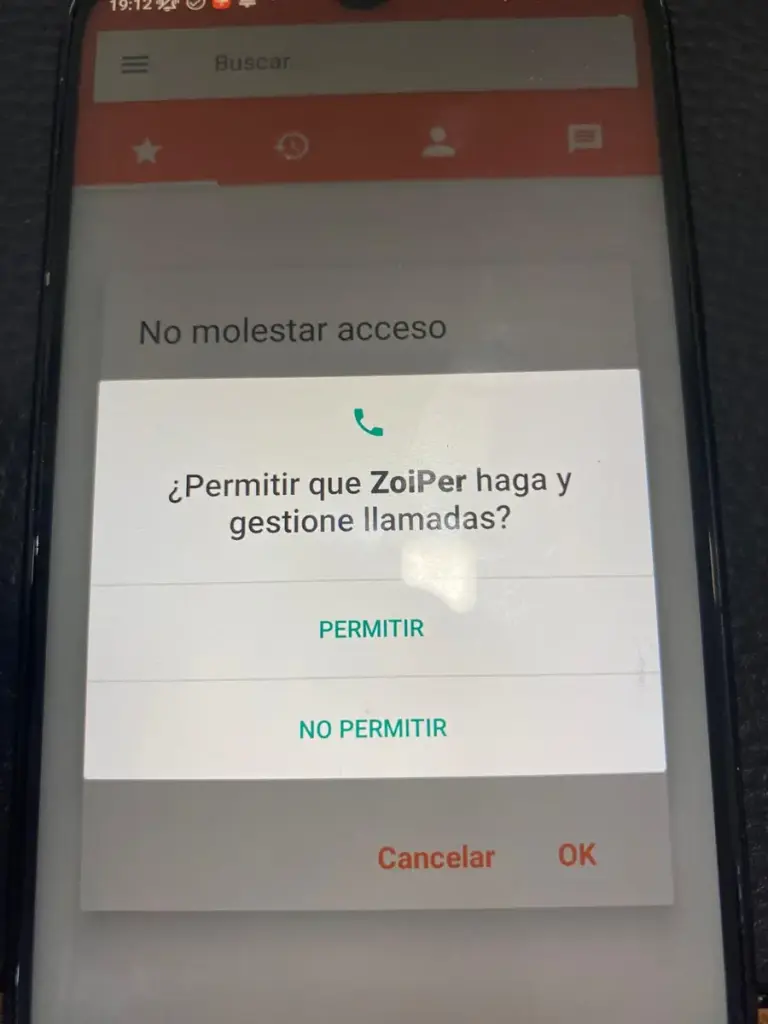
Android may ask permission for Zoiper to make and manage calls. Tap Allow («Permitir») to enable this integration. If microphone access is also requested, grant it so the other person can hear you.
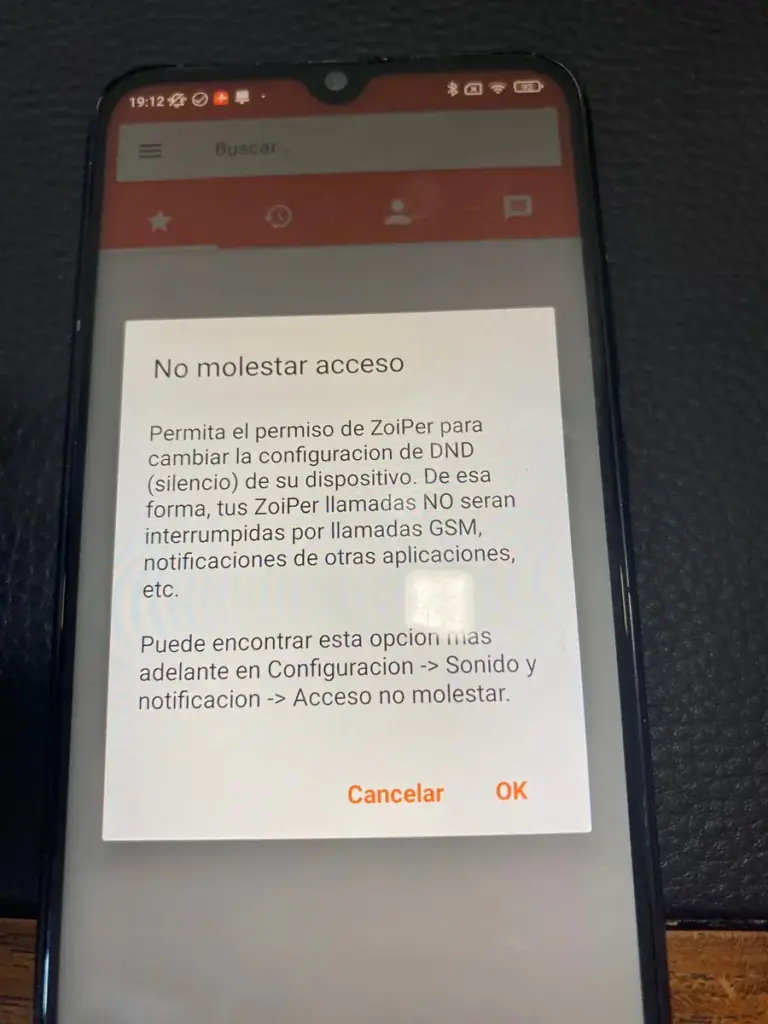
10. Decide whether to allow Do Not Disturb access
Zoiper may request access to Do Not Disturb («No molestar») to manage interruptions during calls. This is an additional setting: tap OK and follow Android’s instructions to configure it, or Cancel («Cancelar») to leave it for later.
11. Check registration and make a test call
After closing the wizard, go to Settings → Accounts and check that your SIP account is registered. Finding SIP TLS confirms transport detection; also check that the account registers with your credentials.
- Open Zoiper’s dial pad.
- Enter a destination number in the format supported by your service, including the international prefix where appropriate.
- Tap the call button and check that both people can hear each other.
- Check the caller ID on the receiving phone. To display your virtual landline number, that caller ID must be configured and authorised in your service.
Calls made through Zoiper use the Internet and are billed under your FijoVirtual service terms. Using the app does not make calls to telephone numbers free.
What to check if you cannot make calls
- The account does not register: check the username, SIP password and server. Remove any pasted spaces and make sure you are using that account’s SIP password.
- The account registers but cannot make calls: check the number format, that outgoing calls are enabled and, where applicable, that you have sufficient balance.
- The other person cannot hear you: check microphone permission and audio output, especially with Bluetooth headphones.
- Audio cuts out or works in only one direction: try another Wi-Fi connection or mobile data to see whether the network is responsible.
- No incoming calls when the app is closed: check account registration, your line’s incoming call settings and the background, battery and push options in your Zoiper version.
For help, contact FijoVirtual through our website, stating which step fails and the message Zoiper displays. Do not send screenshots containing your password.
Technical reference: Zoiper’s official SIP account setup guide. The images illustrate the setup process on Android.
- Published in Blog
Our new website is here: more languages, more countries and closer to you
We have launched our new website, refreshed our design and continue to grow to be closer to you. At FijoVirtual, we are taking another step forward with a website available in more languages and an increasingly international outlook: supporting individuals, professionals and businesses across Europe in their everyday communications.
A fresh look for a new chapter
We have redesigned FijoVirtual with a clear goal: to make it easier to explore our services and find the information you need. A more up-to-date presentation to help you discover what virtual numbers and business telephony can offer.
This refresh reflects our approach to communication: personal, practical and suited to a world in which we increasingly work and connect across borders.
Six languages to bring us closer
You can now browse our website in Spanish, English, French, Italian, German and Portuguese. We want language to make that first contact easier, so more people can discover FijoVirtual and understand which solution meets their needs.
It is another step towards customers across Europe, from professionals working with other markets to businesses looking to expand their international presence.
More countries, more opportunities to connect
Our growth goes beyond design. We continue to expand our international reach so that distance becomes less of a barrier between your business and its customers.
A virtual number can help you stay in touch with your home country or offer a local point of contact in other markets. On our website, you can explore the available destinations and service options to choose what suits your needs.
Growing with you and your trust
This new chapter is built on the trust of those who choose FijoVirtual for their communications. Whether you have been with us for a while or have only just discovered us, we want you to find clear information and a direct way to contact us whenever you have questions.
We keep working to support you at every stage: when you are starting out, as your business grows and when you decide to expand into new countries.
A new website, more languages and a more international outlook. Thank you for being part of FijoVirtual.
Discover our new website and explore ways to connect with your customers.
- Published in Blog
A virtual number alternative after Skype

wp:html
This is a translation of an earlier article. Prices, coverage, promotions and application screens reflect the original publication and may have changed. Check current availability, requirements and rates before ordering.
Update: Microsoft retired Skype on 5 May 2025. This article predates that change. Number portability must be checked for the specific number and provider; it is not universally unavailable. Microsoft’s information about Skype retirement.
Microsoft has announced the closure of the Skype virtual number service, leaving thousands of users without an easy way to receive and make calls on a FijoVirtual number. At FijoVirtual.com we offer you an immediate, economical and flexible solution so that you can continue answering your professional or personal calls without interruptions.
Which Skype service is disappearing?
Skype offered the possibility of ordering a virtual number that allowed you to receive calls from any conventional phone directly in the Skype app. This functionality, used by freelancers, small businesses and expats, will no longer exist. Microsoft will move users to Teams, a platform focused on video calls and collaboration, but which does not meet this specific need.
FijoVirtual.com: Your new solution for virtual numbers

At FijoVirtual.com we offer you a FijoVirtual number service adaptable to your needs, without depending on specific platforms. Your number works on any device: mobile phone, computer, tablet or IP PBX.
Advantages over Skype
- Local numbers in more than 50 countries.
- No mandatory applications.
- Call forwarding and custom settings.
- Better rates and no minimum term.
- Direct support in Spanish.
How to migrate from Skype to FijoVirtual.com?
Skype does not allow you to directly port your numbers, but the process is simple:
- Order a new FijoVirtual number at FijoVirtual.com.
- Inform your clients of your new number.
- Update your data on your website, social networks and email signature.
- Configure your call forwarding, mailboxes and voice announcements from our panel.
In less than 24 hours you will be receiving calls without depending on Skype or Teams.
What about Teams? Is it a real alternative?
Microsoft recommends migrating to Teams, but this platform is designed for online meetings, chats, and internal collaboration. It is not an optimal solution to manage a virtual company number or a professional personal number.
In addition, Teams requires a more expensive subscription and complex configurations. With FijoVirtual.com you have a simple, flexible and no-strings-attached alternative.
Who can benefit?
- Freelancers with international clients.
- Companies with remote teams.
- Online businesses that need a visible landline number.
- Professionals who separate personal and work calls.
- Expats who want to keep a local number.
More than a number: a professional tool
With FijoVirtual.com you don’t just get a virtual number. You get a suite of features like:
- Online management panel.
- Simultaneous and intelligent call forwarding.
- Custom voice announcements.
- Call recording.
- Complete statistics and records.
- Integration with IP or CRM switchboards.
Don’t miss calls or clients
The closure of Skype is an opportunity to improve your communication. At FijoVirtual.com we welcome you with a professional and affordable solution.
Ready to migrate? Contact us and stay connected.
Explore virtual numbers · Check countries and prices
/wp:html
- Published in Blog
Set up a VoIP app on your mobile or computer
wp:html
This is a translation of an earlier article. Prices, coverage, promotions and application screens reflect the original publication and may have changed. Check current availability, requirements and rates before ordering.
Historical tutorial: the screenshots and application names belong to the original guide. The Flash step is obsolete and should not be followed. Use the current control panel and the settings supplied for your SIP account.
Here we explain step by step how to configure it:
1- Download the app from:
Call center https://www.youtube.com/watch?v=AZy0XN5YA1M&t=5s , download: https://call.center/softphone-download/
Phone Systems (search by name in the mobile app store)
2- Install it
3- Configuration: Go to the virtual PBX
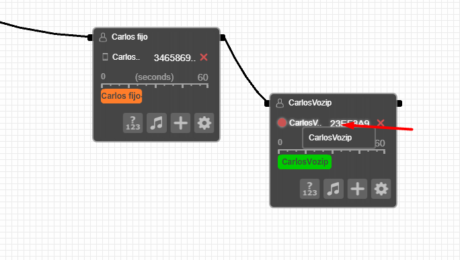
You must go to your FijoVirtual control panel in the customer area and press virtual PBX and see virtual PBX
4- If you get a flash error
The original tutorial included this video for Chrome. This Flash procedure is obsolete and should not be followed. https://youtu.be/H66wbZ1beCE
5- Configure the virtual PBX
Once in the switchboard, if you have doubts about how to configure it, carefully read the following tutorial: Virtual PBX, it also has an explanatory video of a summary of what the switchboard can do https://youtu.be/ECVSKgwK_f0
6- Details to enter in your phone settings:
It will ask you for the following information:
6.1 Data
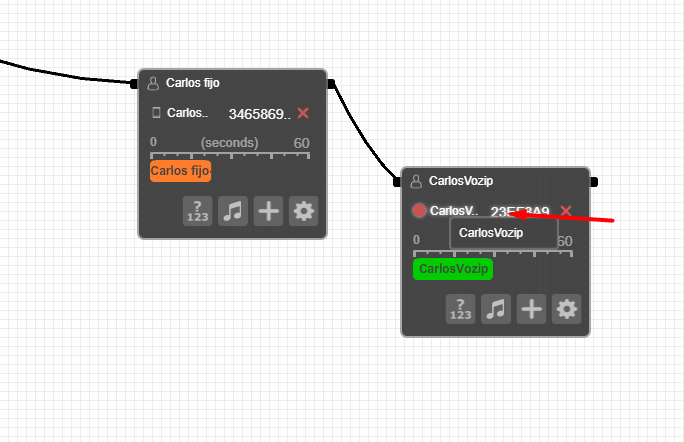
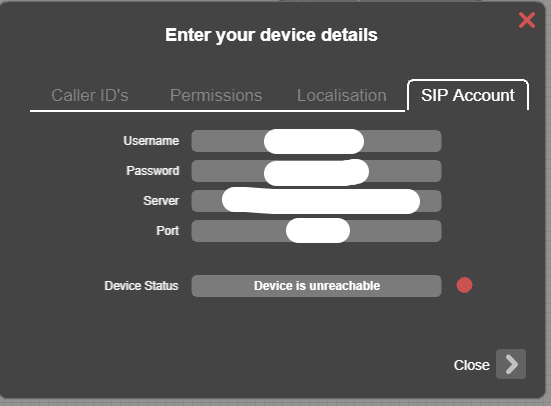
name (name or id), user (username), password (password), server (server) and port (port).
How is this data obtained? , go to the virtual PBX and in the object you created VoIP (sip) in the sip account tab:
6.2 QR Code
Or from:
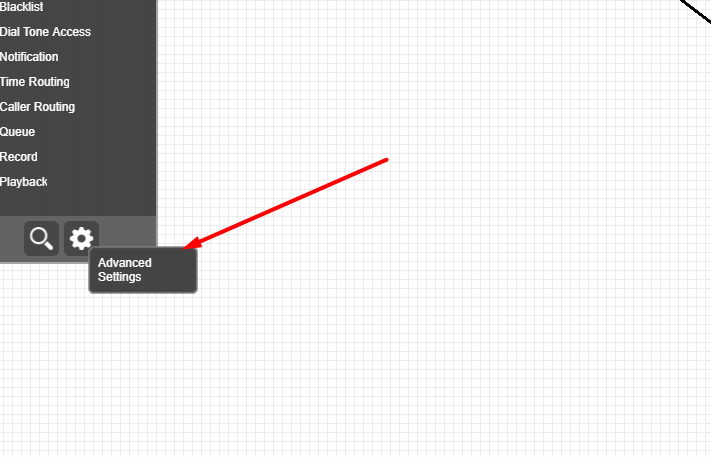
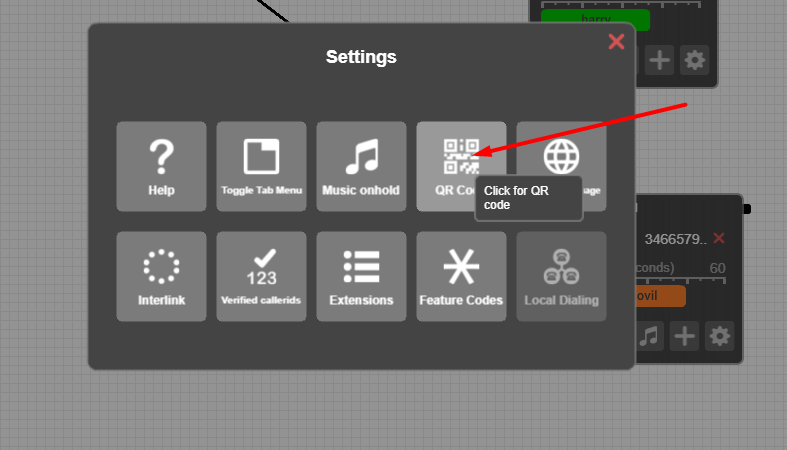
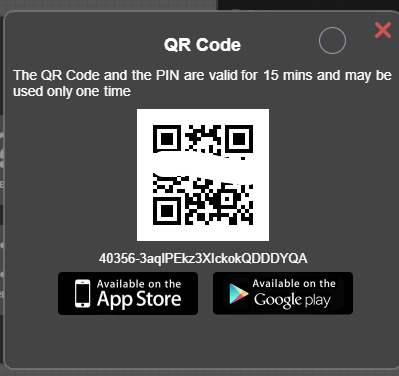
Proceed to scan the code from the app.
7. Configure the apps
Call Center
Go to No sip accounts
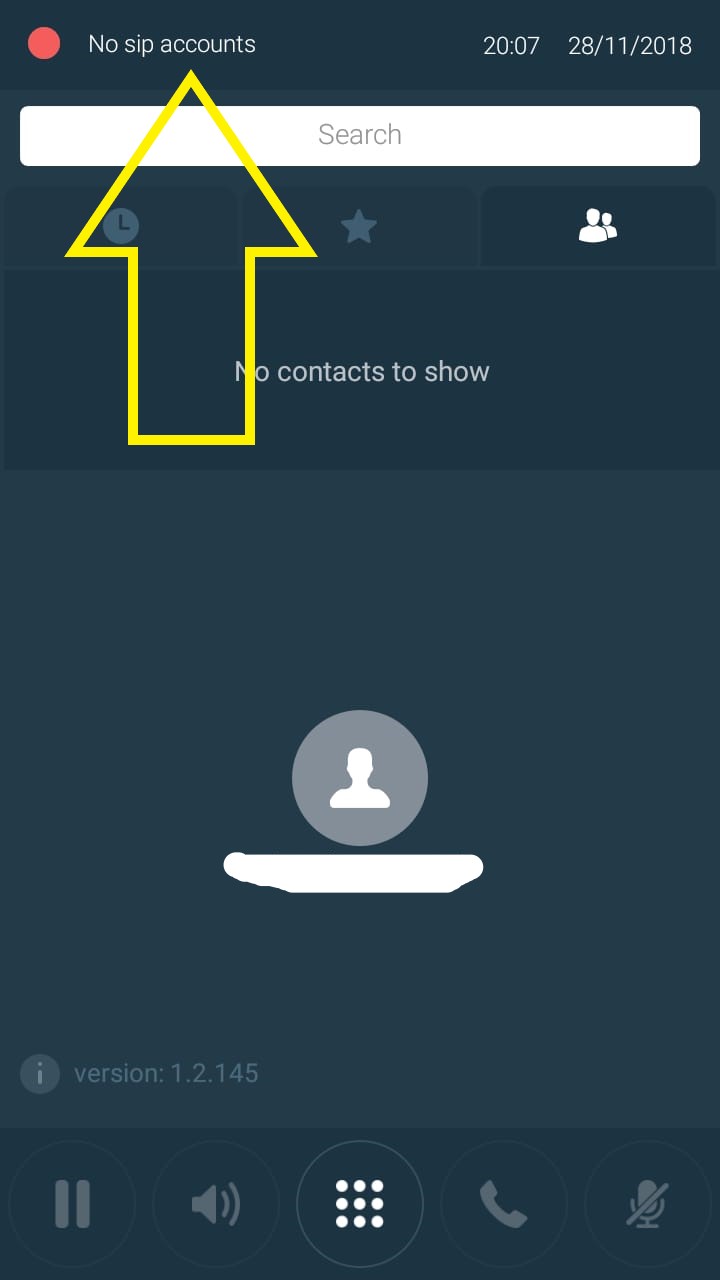
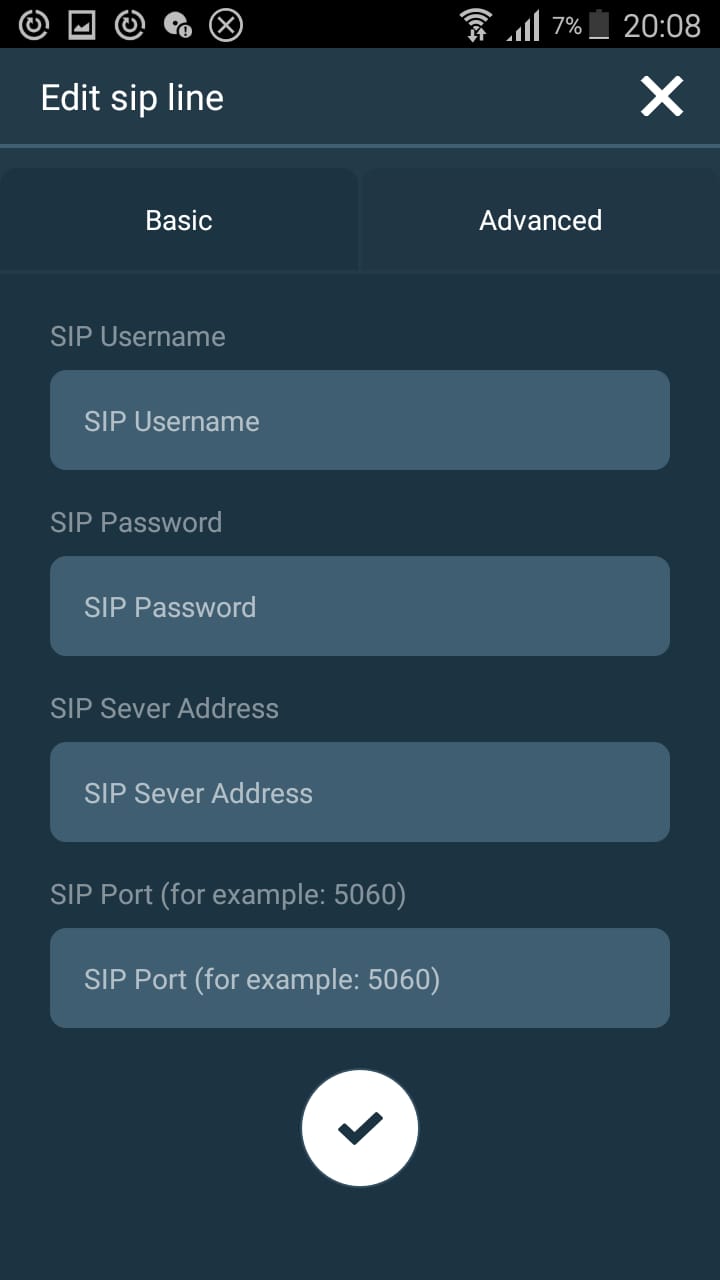
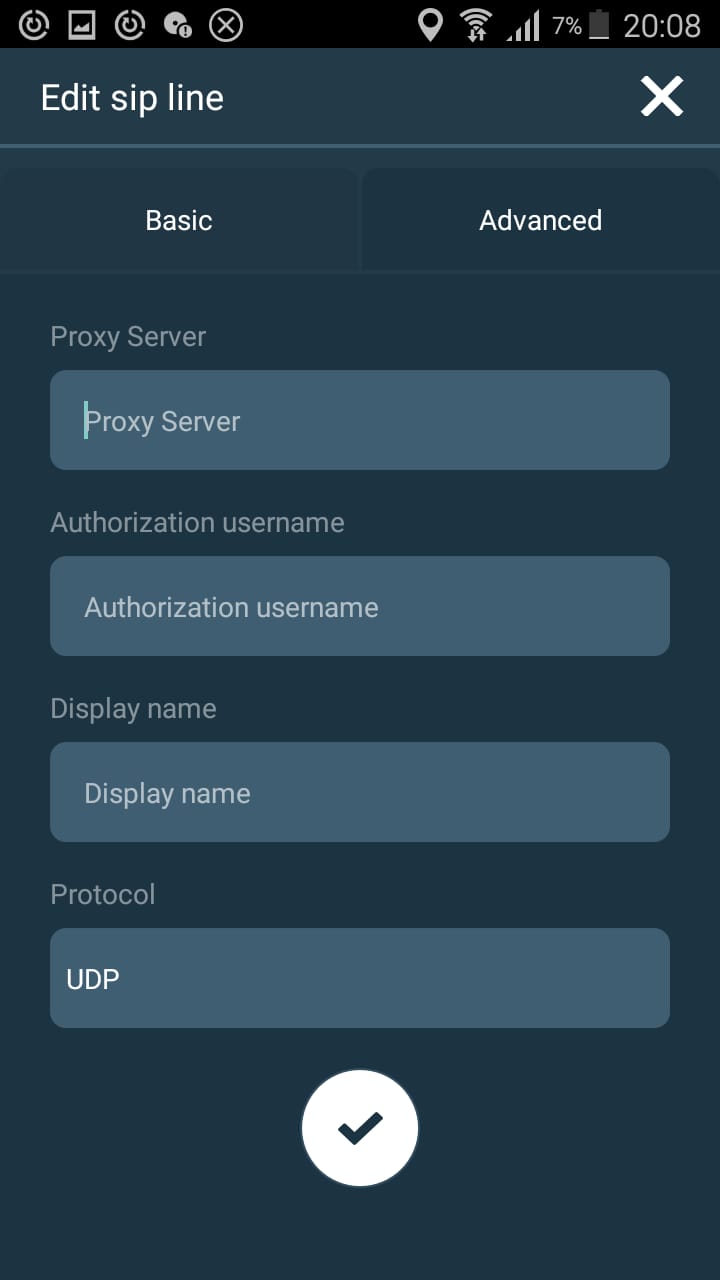
Finished
Phone Systems
Go to Device Authorization
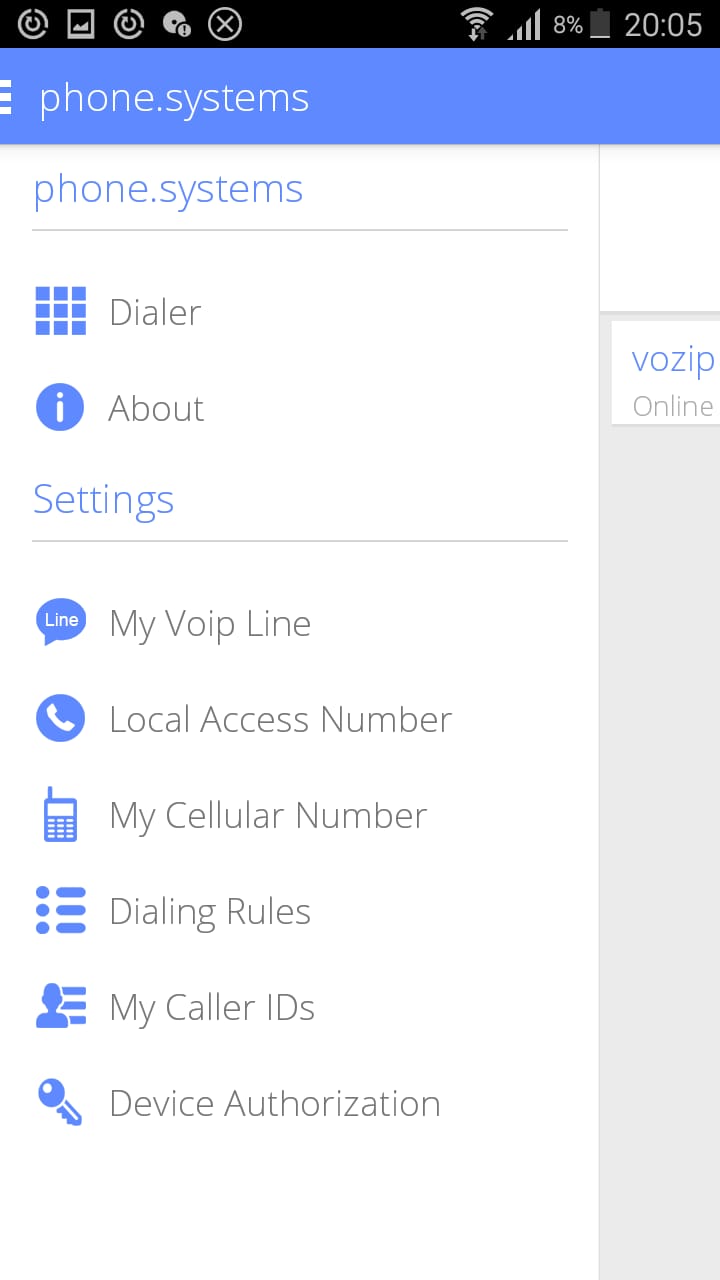
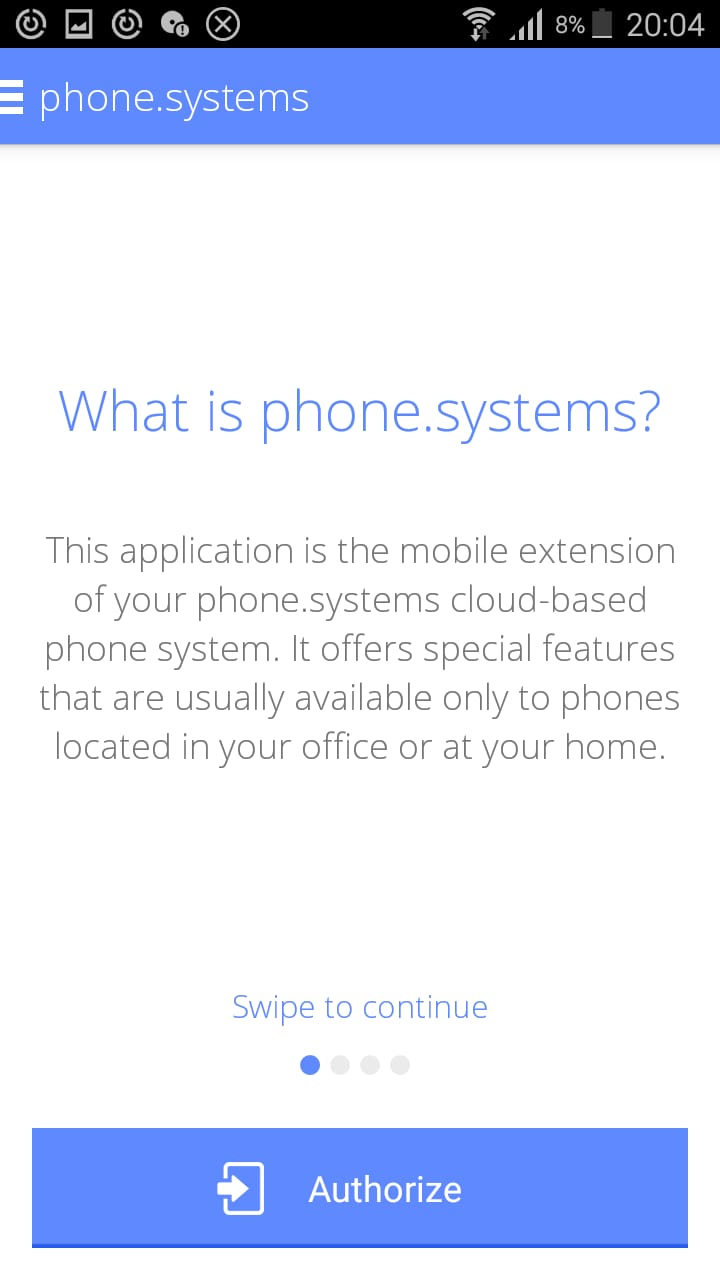
Scan code from step 6.2
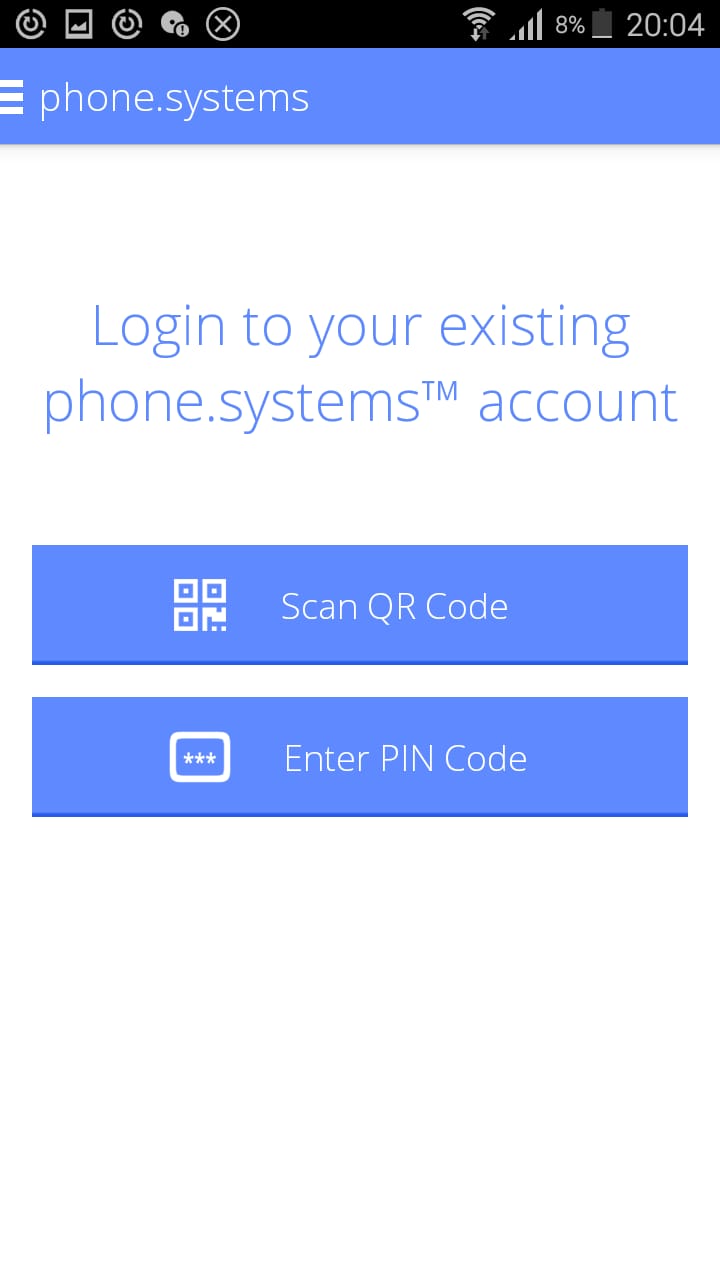
Verify that you are online
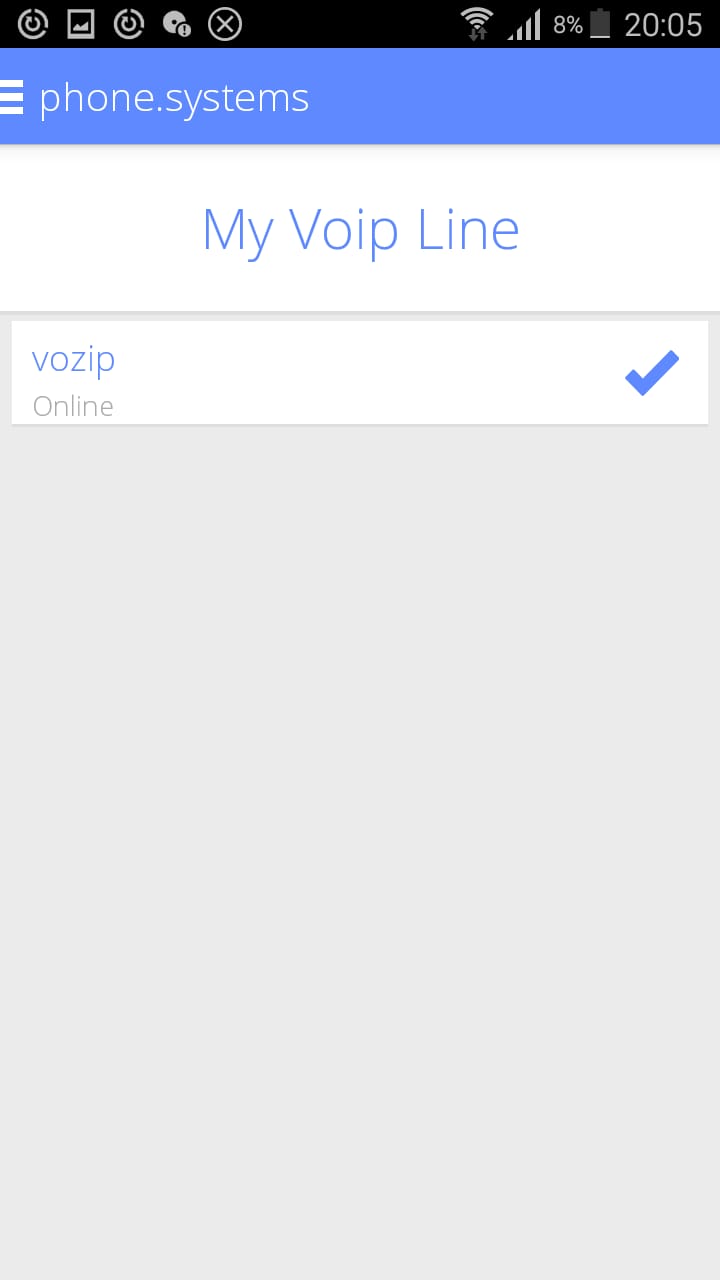
Check that it is selected as the outgoing number
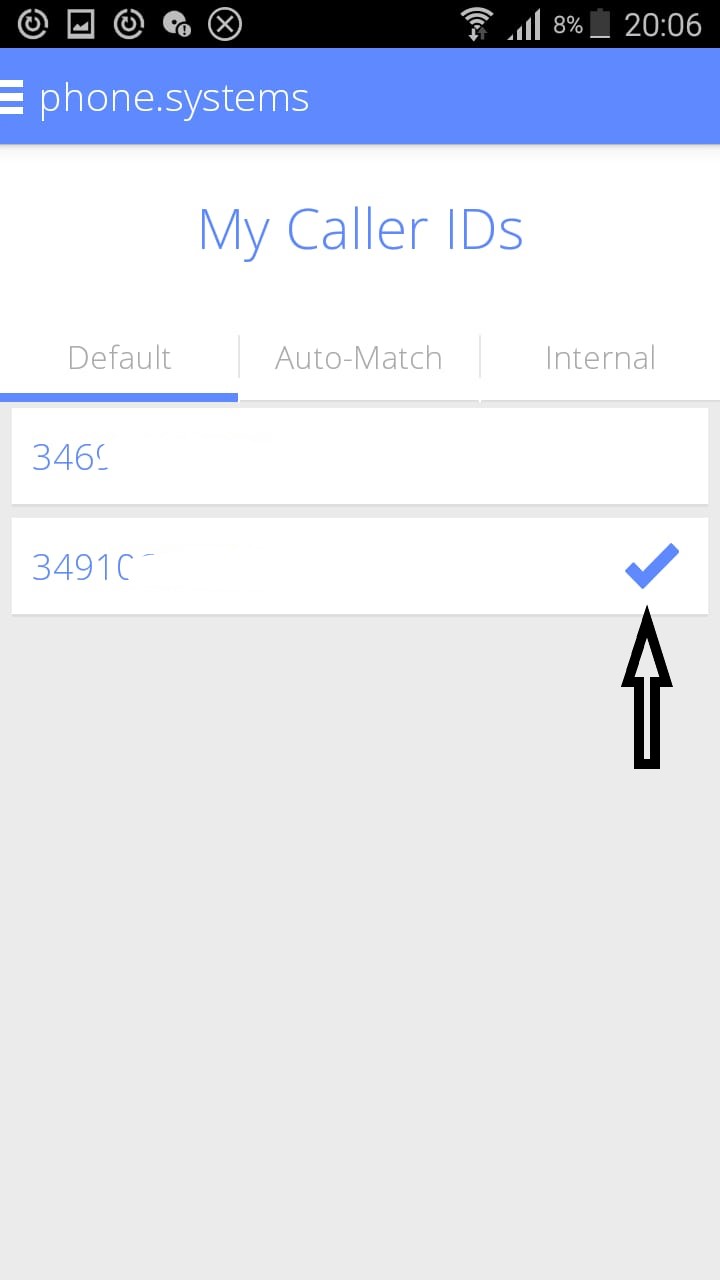
That’s all
Important reminders:
- To make calls you must place all the international and national prefixes of the country you are calling in front of the number, even if you are in the same country, for example if you call Spain, put 346……
- You must have an internet connection on the device.
Explore virtual numbers · Check countries and prices
/wp:html
- Published in Blog
Virtual mobile numbers

wp:html
This is a translation of an earlier article. Prices, coverage, promotions and application screens reflect the original publication and may have changed. Check current availability, requirements and rates before ordering.
What is a virtual mobile number?
It is a conventional mobile (or cellular) number like that of your traditional mobile company with the same type of numbering that they can give you (random) but at a more affordable monthly price and with many additional functions that you do not have with your mobile company, such as for example the telephone switchboard (interesting for companies and why not for individuals) and if you need them traditionally you must buy a physical telephone exchange with the high costs that this implies.
Our FijoVirtual system does not require any type of installation, no landlines, no machines, no additional mobile phones. You don’t even need to have Internet, Wi-Fi or data connection. In addition to this, you have the advantage that you have no minimum term, you can cancel it whenever you want and at no cost, you do not need to buy an additional mobile phone since you receive the calls on your current mobile phone (or divert to another traditional landline if you want), you do not have to travel to the country you want to contract it, for example if you are in Chile you can order a Virtual mobile phone from the United Kingdom, you do it online in a few minutes you will have it working.

Virtual mobile number vs normal mobile number
For callers, a virtual mobile number works like an ordinary mobile number, with charges determined by their phone plan. A traditional mobile line requires a SIM card. With virtual mobile numbers from FijoVirtual, you do not need an additional SIM for the virtual line. A monthly maintenance charge applies.
Having a second cell phone line is still necessary for many individuals and for the vast majority of companies, since they can be used for different purposes, for example one for business and another for your personal social life, you receive calls from this cell phone on the same cell phone and you do not have to carry several devices with you. You can contract as many virtual mobile numbers as you want from FijoVirtual, divert all the calls received through them using the forward mobile to mobile service that we offer and be able to centrally receive all calls from a single place (a mobile or any other telephone).
The need for one or more mobile lines remains, but an extra SIM for each line is no longer essential. Virtual numbers offer an alternative to the infrastructure of traditional telephone operators, opening up new ways to organise your communications.
Need for a virtual mobile number
Having a virtual mobile number in which to receive all calls can be useful, for example, in those cases in which we reside in a specific country and we want to have a number from another country but we do not have a fixed address, we do not want to install one in the address we have, etc. Furthermore, if what you are interested in is having several virtual mobile numbers (one, for example, per country if we are a company to be able to provide local service to all customers) with FijoVirtual it can also be done.
Another of the great advantages of the virtual mobile number in general is that they offer high flexibility, they can be registered, they can be unsubscribed and multiple combinations can be generated. If we add to this that in FijoVirtual you can add services such as the virtual PBXor the virtual fax, among many others, we find a wide range of telecommunications services at our disposal and without having to pay anything fixed for them.
 Denmark
 United Kingdom
 Iceland
 Lithuania
 Holland
 Poland
 Russia
 Ukraine
 Brazil
 Australia
 Israel
Explore virtual numbers · Check countries and prices
/wp:html
- Published in Blog
What you need to know about a virtual phone number

wp:html
This is a translation of an earlier article. Prices, coverage, promotions and application screens reflect the original publication and may have changed. Check current availability, requirements and rates before ordering.
Virtual telephone: things you should know
Whoever is thinking about ordering a virtual telephone should know some aspects about this service to determine if it is a solution adapted to their needs or if, on the contrary, it is not the solution they need.
Having a virtual phone can be extremely useful on many occasions and on many others it may not really be the service that is needed, so it is good to know how it works to be aware of everything it includes and be able to make an informed decision.
Unpacking the virtual phone
 When we are talking about a virtual phone, we can actually be talking about different services, but in the case at hand here we will focus on one of them. In this article we will focus on the virtual telephone number.
A virtual phone could be a telephone number or a calling service over the Internet, what is called a telephone that works over an IP, or what is the same, we could be talking about VOIP telephony but we are not talking about it.
In the same way as what was expressed in the previous paragraph, we could also be talking about a virtual PBX or similar services, but in this case, for this specific service, we are not talking about it either.
For the case at hand here, everything is much simpler, everything is much easier and simpler. In the case that concerns us here, we are talking about the possibility of having assigned as many virtual telephone numbers from any place as are needed to be able to receive the call on them but for the call to ring on any other device where the call is forwarded.
Thus, a virtual phone, in the terms discussed in this article, is not a phone that necessarily requires a switchboard or from which we can connect to the Internet or anything like that. A virtual phone in the terms discussed in this article is a number that allows us to provide local service or receive calls of any type as if we were local without actually having to be local or be in the place.
Thus, for example, any student who arrives at a certain place can choose a local telephone number for that place (in the case of, for example, Spain, a number from the province they want) and from that moment have the calls they receive there diverted to any other landline or even to their mobile phone, and be able to comfortably receive calls without the need to have any infrastructure enabled in this regard.
This also benefits the people calling your virtual number. They can dial a number local to them rather than an international destination. Their own provider determines the charge, while forwarding is billed under your service plan. This arrangement can make staying in touch more convenient and may reduce costs.
Ordering is straightforward and completed online. Check the available numbers, the monthly fee and the forwarding costs to choose a service that suits your needs.
Explore virtual numbers · Check countries and prices
/wp:html
- Published in Blog
Virtual numbers and WhatsApp
wp:html
This is a translation of an earlier article. Prices, coverage, promotions and application screens reflect the original publication and may have changed. Check current availability, requirements and rates before ordering.
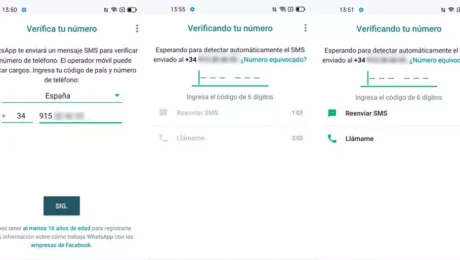
Current registration requirements: WhatsApp excludes VoIP numbers and accepts landlines only in WhatsApp Business. A virtual number does not guarantee registration, SMS reception or compatibility with WhatsApp, Telegram or Viber. The original claims below describe the earlier article, not a compatibility guarantee. WhatsApp phone number registration requirements.
Install WhatsApp from your FijoVirtual
Now you can mount the number one instant messaging application directly on your contracted FijoVirtual from any country.
You can enjoy WhatsApp from anywhere in the world, for example you are in Colombia and you need a WhatsApp number from Spain, then you must order a Virtual Landline from Spain and once it is activated you assign it to WhatsApp.
How to activate the WhatsApp service on my mobile or cell phone?
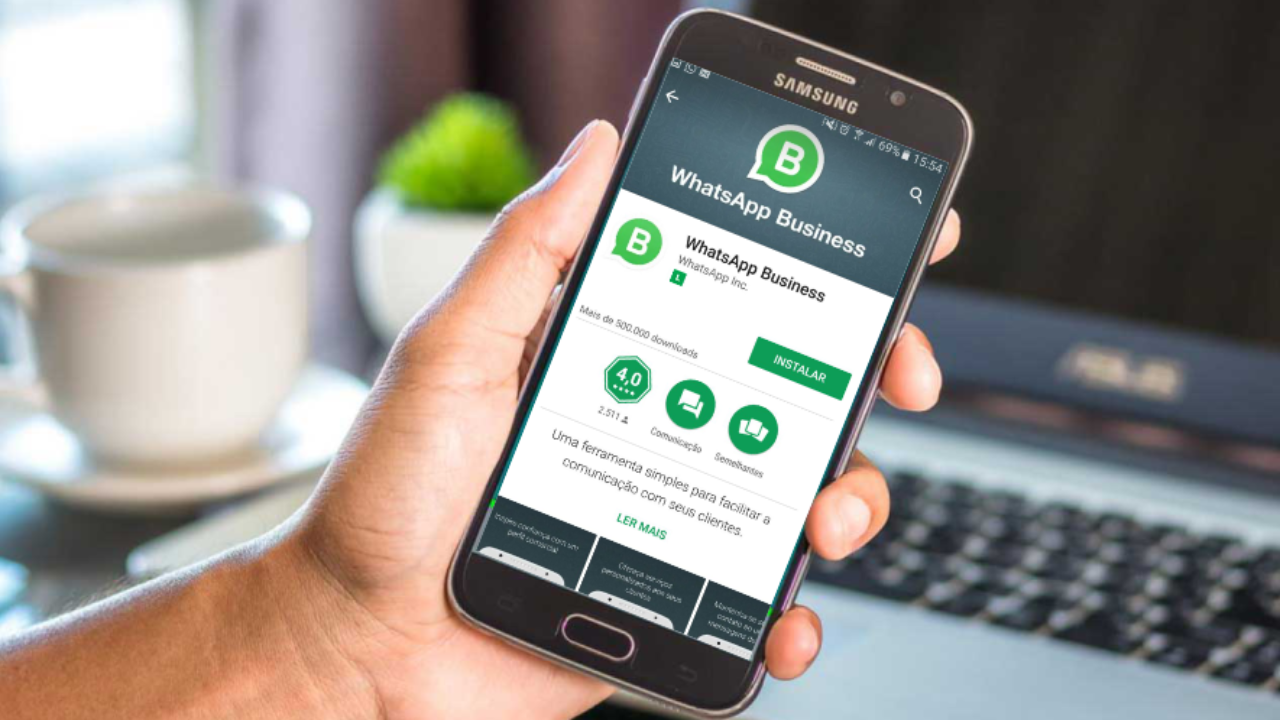
WhatsApp does not allow you to have two WhatsApp accounts on the same phone, but you can install a dual application or have the Business WhatsApp with the FijoVirtual so you will have both chats on the same device.
Why choose FijoVirtual for virtual WhatsApp?
We are the best in providing WhatsApp virtual numbers, phone numbers and virtual numbers. Our services are available in all countries around the world. We provide our services at a very low cost. We can provide you with an unlimited number of virtual numbers for your business or personal use. The number we offer to our clients is 100% real and active.
If you need a WhatsApp virtual phone number for your business or personal life, we’ve got you covered!
With our virtual WhatsApp service, you can get an unlimited number of local and toll-free numbers in more than 70 countries. You will have a dedicated number to give to clients and customers so they can call you without having to pay international long distance charges.
Our service is affordable and easy to set up, so you can focus on what’s important: getting things done!
Easy and fast Virtual WhatsApp
WhatsApp Virtual is a service that allows you to obtain virtual numbers for WhatsApp. We also provide the opportunity to get a virtual number for other applications such as Telegram and Viber.
With our service you can obtain a virtual number from different countries in the world, such as: United States, Spain, Mexico, Canada, Brazil, Argentina and more than 70 countries around the world. Your number will be active in less than 1 minute (depending on the country and its regulations) after purchase!
Are you looking for a WhatsApp virtual number for your business?
You are in the right place!
We have the best virtual numbers available. We have more than 4,000 numbers to choose from, and from €6 per month.
The best part? You can receive affordable calls and unlimited WhatsApp messages with each number. You’ll never have to worry about running out of minutes or messages, simply choose a number and use it as much as you want!
Explore virtual numbers · Check countries and prices
/wp:html
- Published in Blog
Ordering a Spanish 900 901 or 902 number
wp:html
This is a translation of an earlier article. Prices, coverage, promotions and application screens reflect the original publication and may have changed. Check current availability, requirements and rates before ordering.
This is a basic service for registering a free or paid number in the country you need it and forwarding calls made to your mobile number
HOW DOES IT WORK?
We register a free or paid number for the country of your choice, tell us which mobile number you want to receive calls to that FijoVirtual number and in a few minutes you will have it working. What is a Virtual Landline?
HOW DO YOU SIGN UP?
It’s very easy, no contract or permanence is required, you order everything online! First, you select which number you want from more than 60 countries available in different provinces, then you select whether you want to forward it to a landline or a mobile number or order a virtual PBX, you sign up for FijoVirtual and buy a virtual phone number from where you want to be called. Activation takes just a few minutes.
Get started now!
MORE INFORMATION
FijoVirtual offers you a free or paid telephone number from more than 60 countries to which your clients, family, friends and/or contacts in that country can call you at the national call price. You can associate your Virtual Landline number to your foreign phone, so that they make a call to a local landline and you receive it on your foreign number. You can also associate it with a telephone number from the same country that you contract the FijoVirtual.
For example in Spain there are numbers 900, 901 or 902. We must know that 900 numbers are always free for the caller, 901 numbers share the payment between the caller and the receiver and 902 are paid for the caller and the recipient.
The basic service can only receive the call on a single number. However, we also offer the possibility of using our Virtual PBX service. This service allows you to receive calls on multiple phones in addition to having many other advantages such as call recording, welcome messages, call notification by email and many more functions.
FEATURES
Explore virtual numbers · Check countries and prices
/wp:html
- Published in Blog
Introducing our virtual number control panel
wp:html
This is a translation of an earlier article. Prices, coverage, promotions and application screens reflect the original publication and may have changed. Check current availability, requirements and rates before ordering.
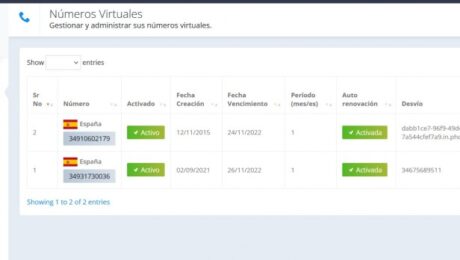
We are pleased to present a new control platform for your virtual number. You can now enter it and easily configure your call forwarding, request a support ticket, see the calls you have received, see payments and collections and much more.
Explore virtual numbers · Check countries and prices
/wp:html
- Published in Blog
FijoVirtual in Estrella Digital

wp:html
This is a translation of an earlier article. Prices, coverage, promotions and application screens reflect the original publication and may have changed. Check current availability, requirements and rates before ordering.
A personalized and easy-to-use calling system
In order to start working with a virtual telephone it is not necessary to purchase any electronic device, since the only thing needed is a personal mobile number to which all calls destined for the virtual number are linked and diverted. In addition, it is a service that can be contracted quickly and has no minimum term contract or cost for canceling or registering the service.
Explore virtual numbers · Check countries and prices
/wp:html
- Published in Blog