

How to set up Zoiper with FijoVirtual: SIP account step by step
Set up your FijoVirtual SIP account in Zoiper for Android: username, host, SIP TLS, permissions and a test call. Step-by-step guide with images.
Set up Zoiper on your Android phone to make calls with your FijoVirtual SIP account. This illustrated guide takes you through each step, from opening the app to entering the server and granting phone permissions.
The screenshots show a version of Zoiper for Android. Wording, screen order and offers may vary with the installed version. The screenshots are in Spanish; the Spanish button labels are included below so you can follow them.
Before you start: what you need
- Your FijoVirtual service with a SIP account enabled for calls.
- The SIP username, SIP password and server provided for your account. Your SIP password may differ from your customer portal password.
- An Android phone connected to Wi-Fi or mobile data.
- Zoiper installed from the official app store. Download options are available on the official Zoiper website.
If you do not have your SIP details yet, request them from FijoVirtual before continuing. Zoiper connects to your telephone service; installing it does not create a telephone line or a FijoVirtual SIP account.
1. Open Zoiper and review the terms
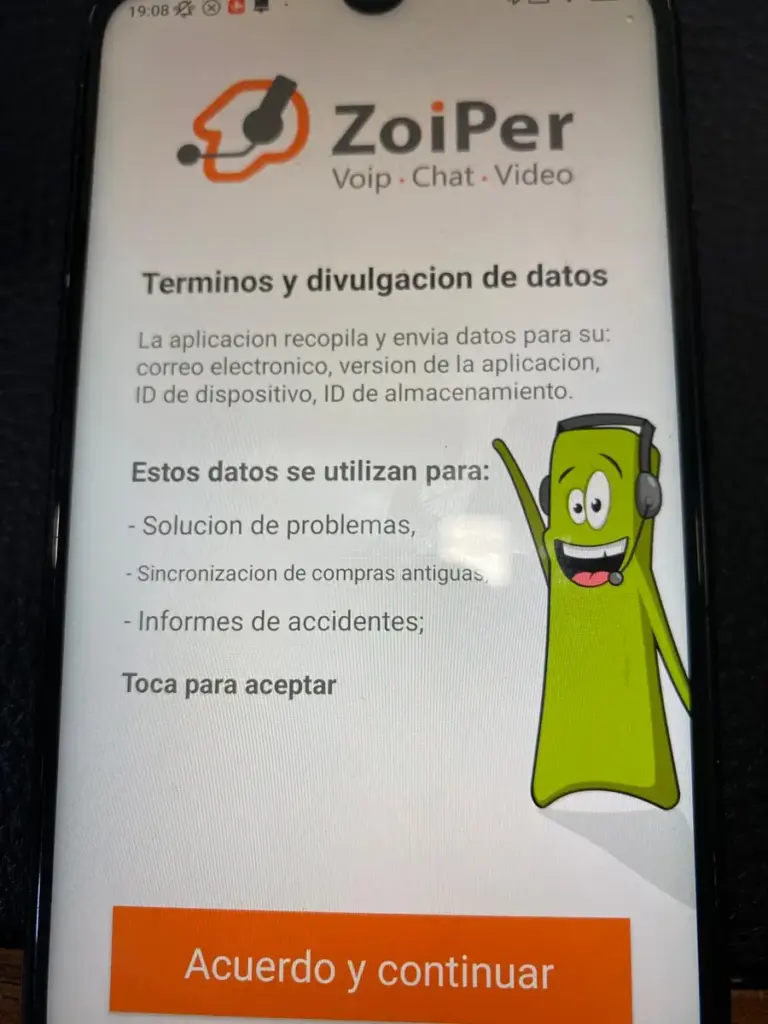
When you open the app, you will see the terms and data disclosure screen («Términos y divulgación de datos»). Read the information and, if you agree, tap Agree and continue («Acuerdo y continuar»).
2. Continue with the free version if that is your choice
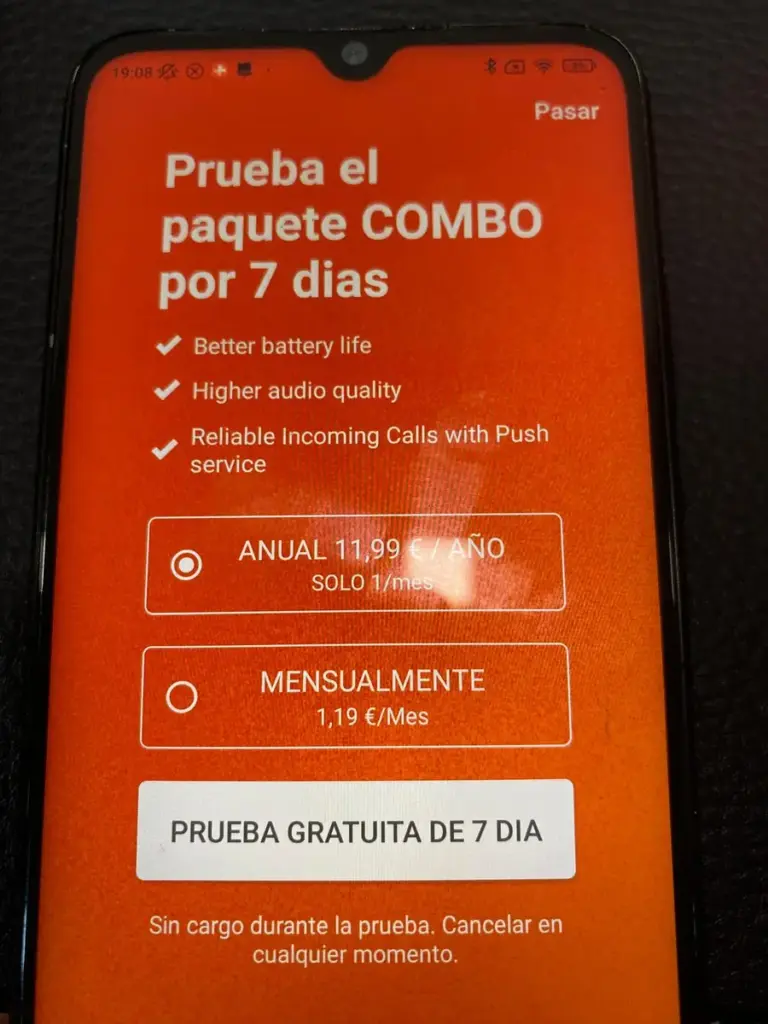
The next screen may offer a COMBO package trial. To follow this guide without activating the trial, tap Skip («Pasar») at the top right. The offers and prices in the screenshot were displayed when the photo was taken; check Zoiper for current terms.
Zoiper then asks whether you are sure you want to use the limited free version. Tap Yes («SÍ») to confirm. Read the question carefully: here, Yes confirms that you want the free version.
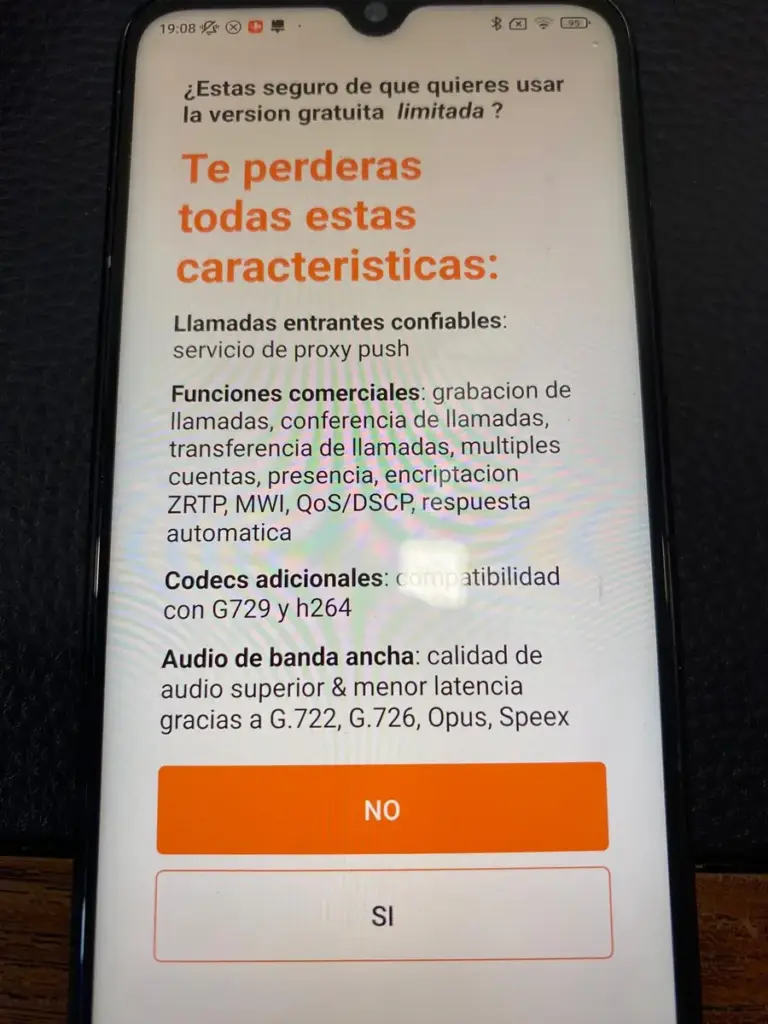
The app states that some features, such as push service for incoming calls, are paid options. This guide focuses on setting up your account and making outgoing calls.
3. Find the account setup screen
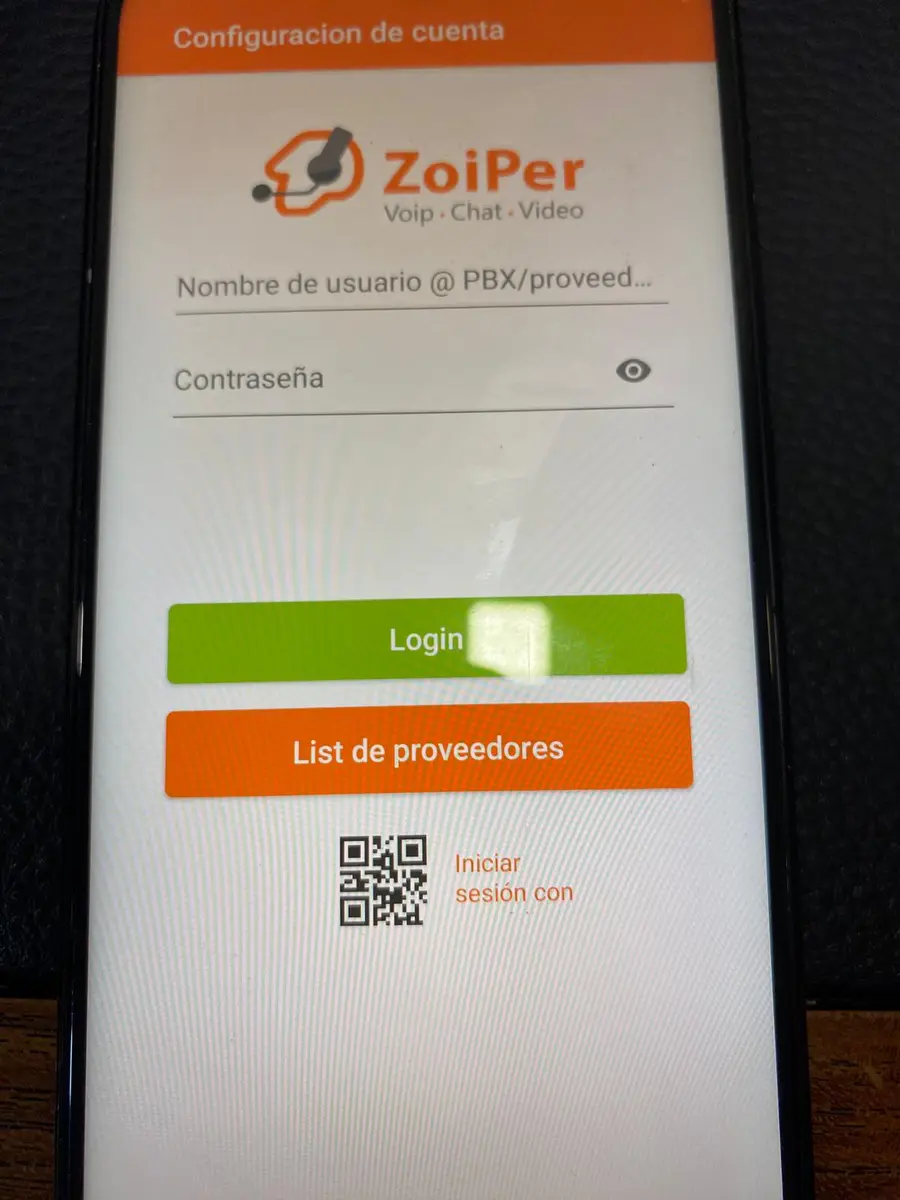
You will see the Username @ PBX/VoIP provider («Nombre de usuario @ PBX/proveedor de VoIP») and Password («Contraseña») fields. Enter your FijoVirtual SIP details here.
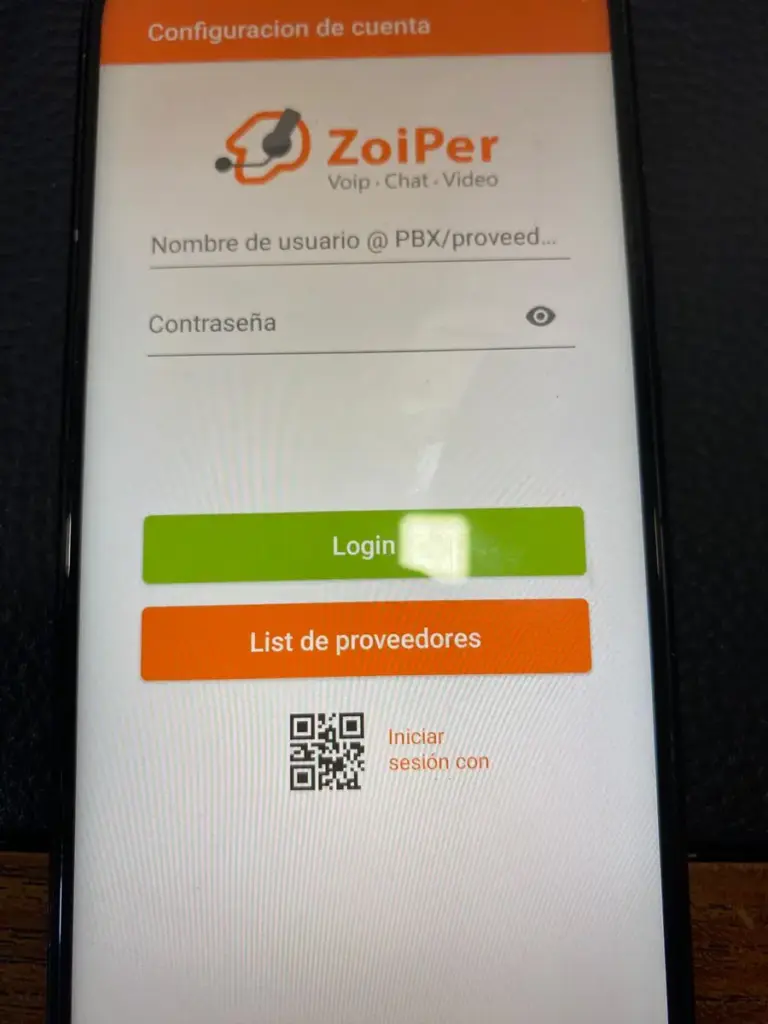
If you already use Zoiper with another account, start from the app menu: Settings → Accounts → Add account (+).
4. Enter your SIP username and password
In the username field, enter the SIP address provided for your account. The example format is YOUR_SIP_USERNAME@host. Replace YOUR_SIP_USERNAME with your actual username, without spaces.
Enter your SIP password in Password («Contraseña»), respecting upper and lower case and symbols. Then tap Login.
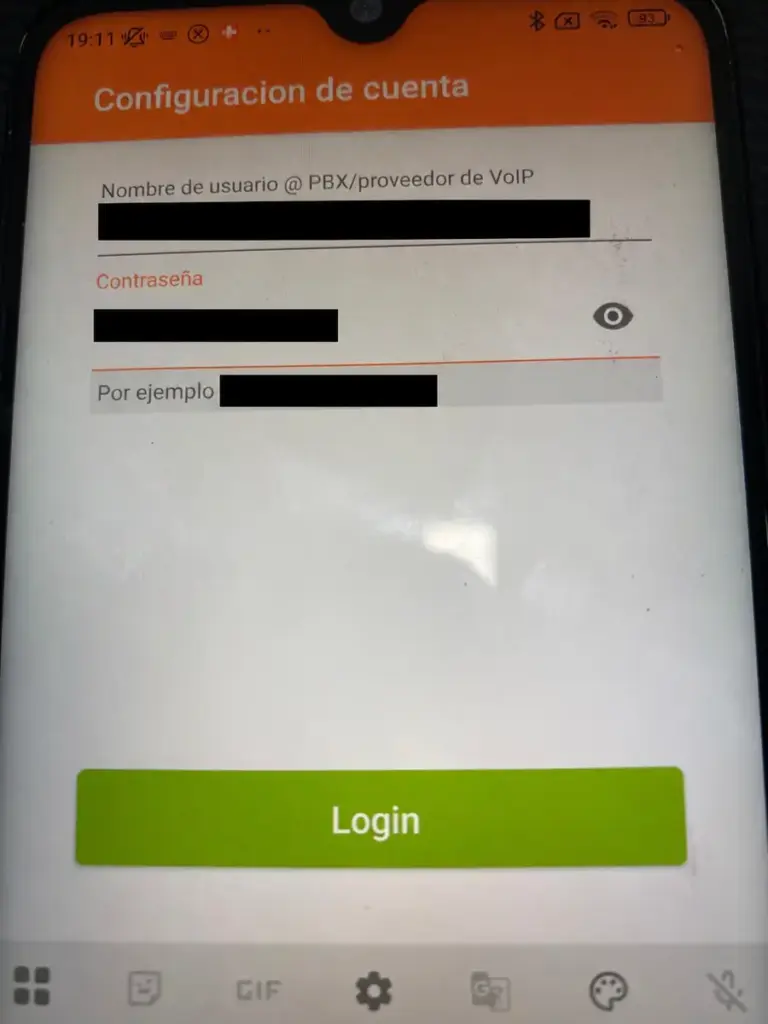
The username and password in the photo are covered with black bars. Always use your own details; do not copy another account’s credentials or share your password.
5. Check the SIP server
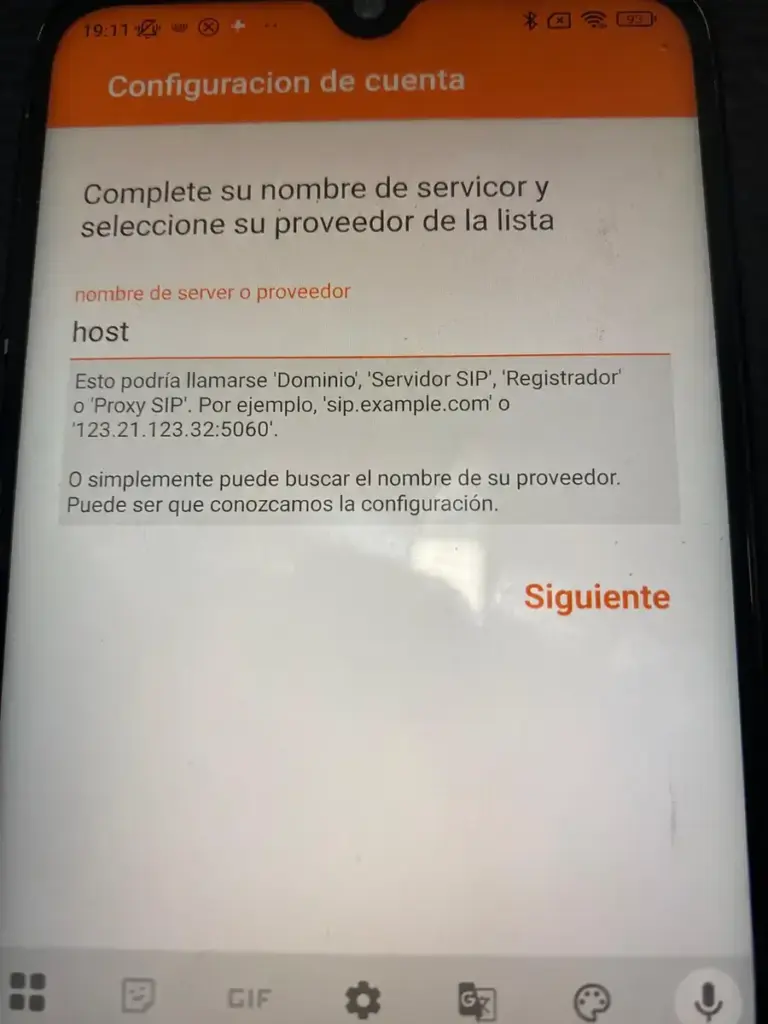
Check the domain in Hostname or provider («Nombre de servidor o proveedor»). This example uses host: replace it with the server provided for your account. If you entered the full username with @host, Zoiper may fill it in automatically.
If FijoVirtual has provided a different server for your account, use that value. Enter only the server, without the username or https://. Tap Next («Siguiente»).
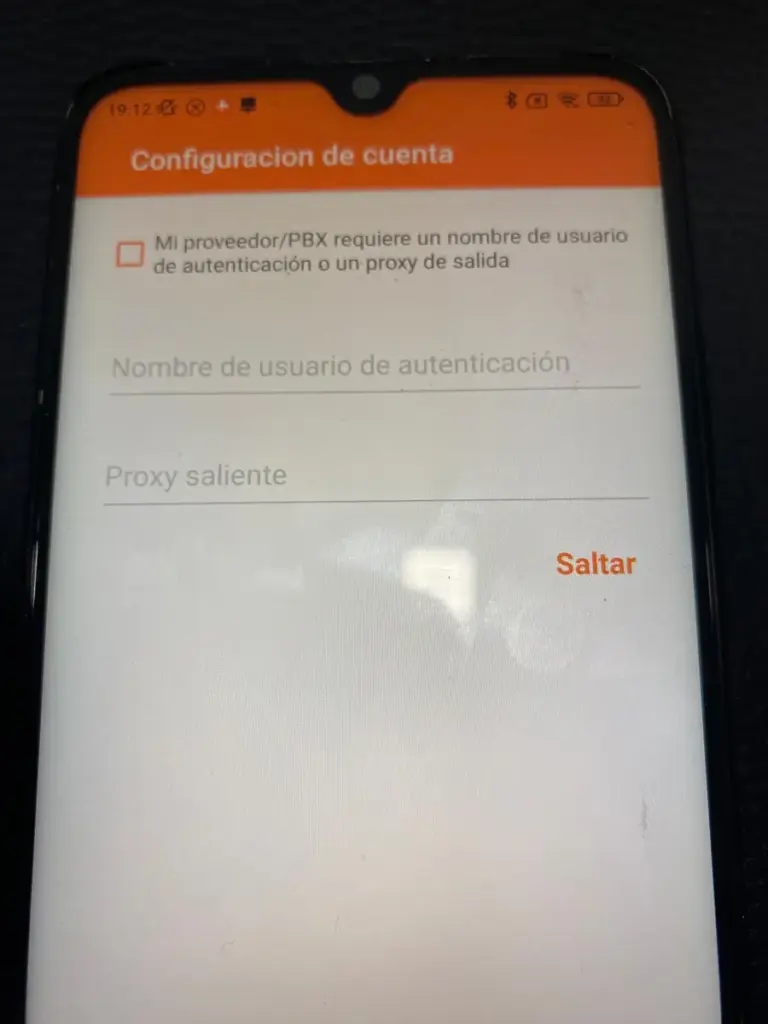
6. Skip the additional proxy unless you have been given one
The next screen lets you add an authentication username or an outbound proxy. In the setup shown, the box is unchecked and the fields are empty: tap Skip («Saltar»).
Complete these fields only if your account instructions include those values.
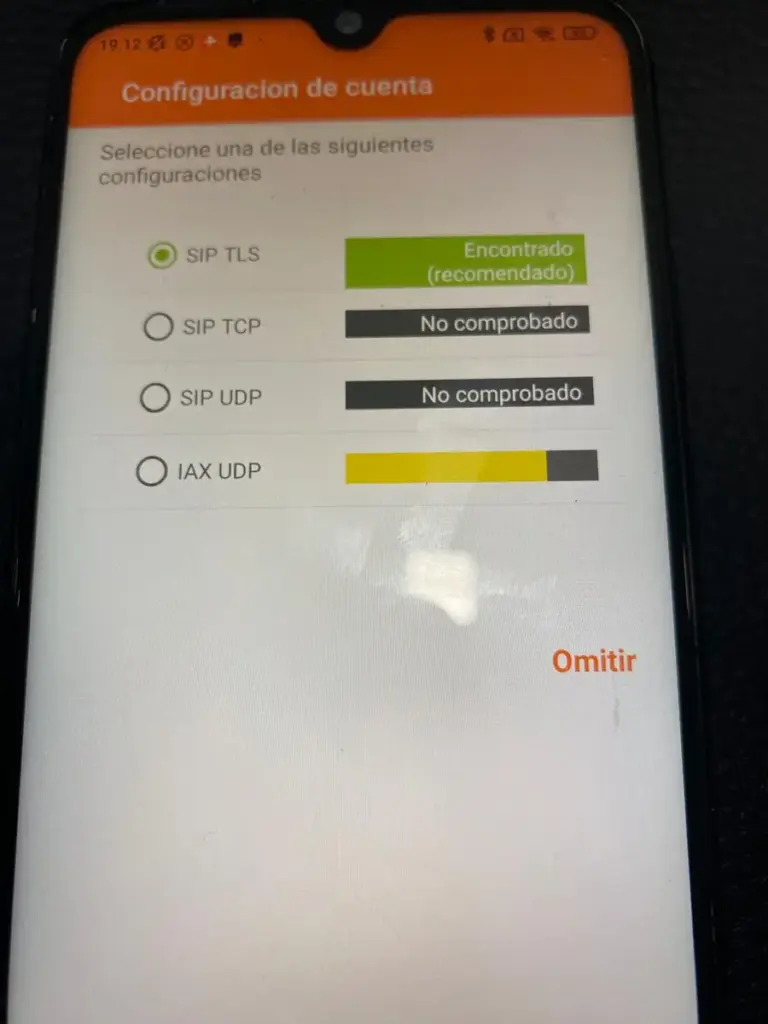
7. Wait for Zoiper to detect the connection
Zoiper checks the available transports. Wait for the search to finish. In this screenshot, SIP TLS already shows Found (recommended), «Encontrado (recomendado)», while another check is still running.
8. Keep SIP TLS selected and finish the wizard
Once detection ends, if your results match the image, leave SIP TLS selected and tap Finish («Terminar»).
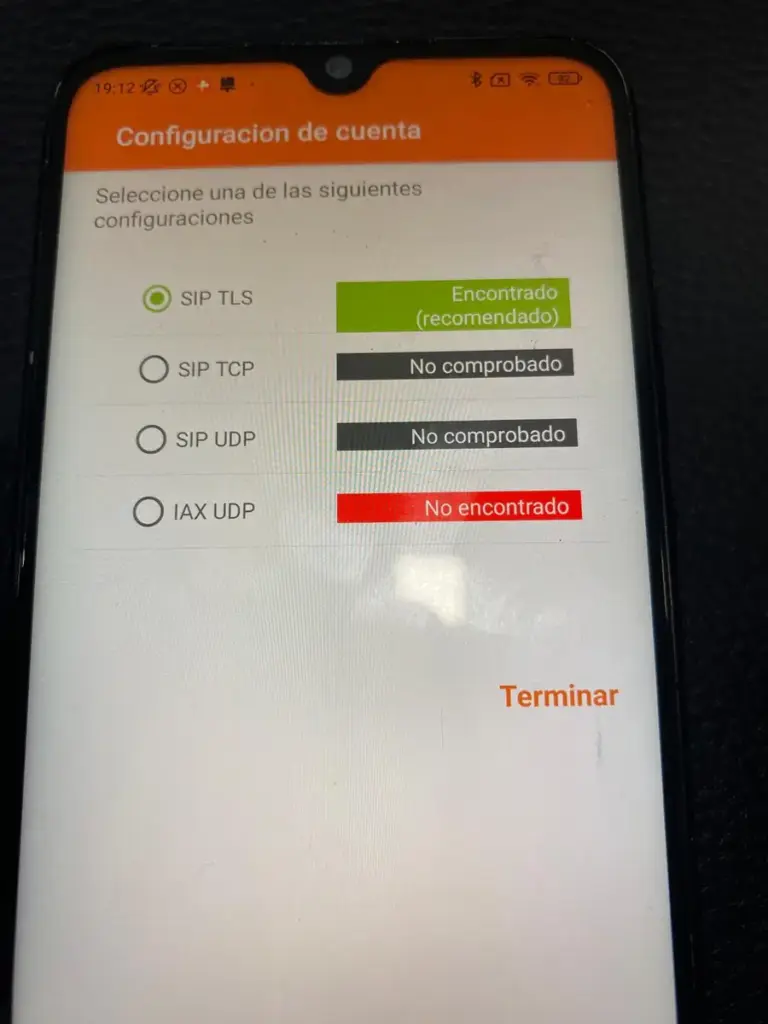
Not found («No encontrado») for IAX UDP does not prevent you from continuing with SIP TLS if it has been found. If no SIP transport is detected, check the server and Internet connection and ask FijoVirtual which transport your account requires.
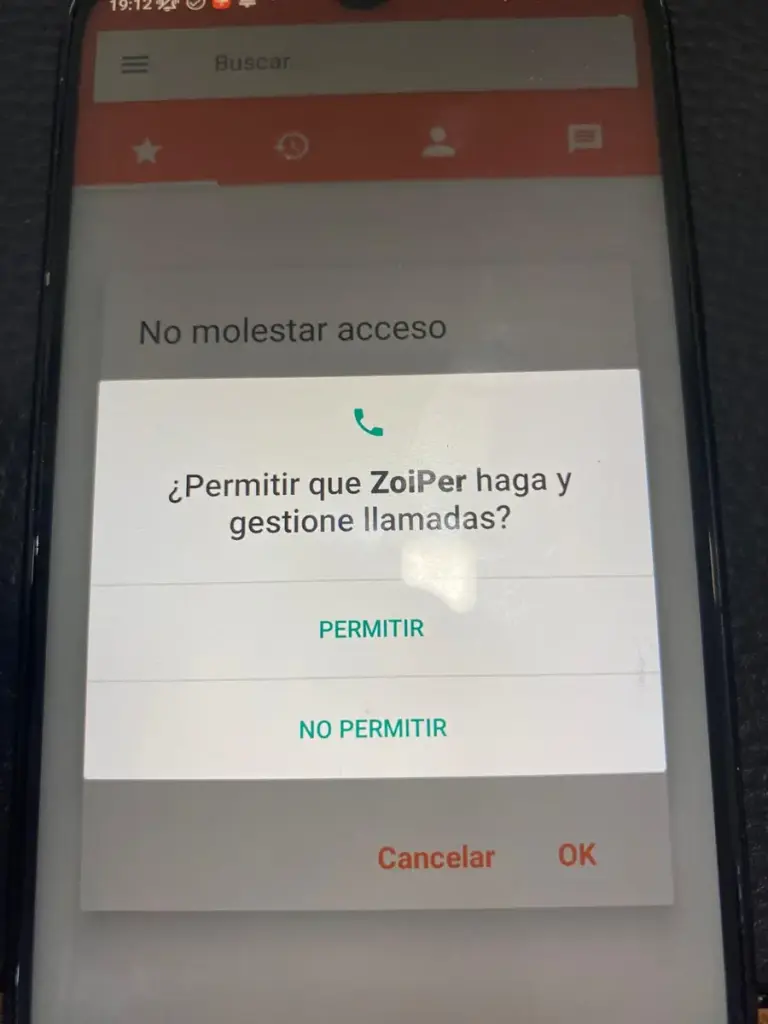
9. Grant call permissions
Android may ask permission for Zoiper to make and manage calls. Tap Allow («Permitir») to enable this integration. If microphone access is also requested, grant it so the other person can hear you.
10. Decide whether to allow Do Not Disturb access
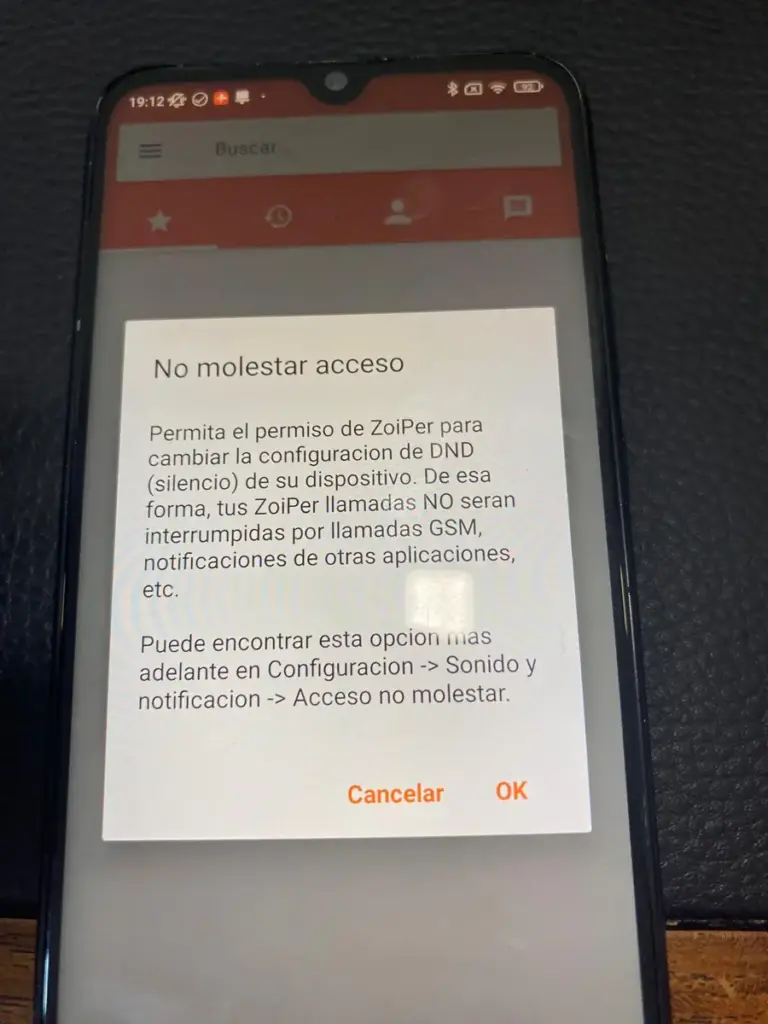
Zoiper may request access to Do Not Disturb («No molestar») to manage interruptions during calls. This is an additional setting: tap OK and follow Android’s instructions to configure it, or Cancel («Cancelar») to leave it for later.
11. Check registration and make a test call
After closing the wizard, go to Settings → Accounts and check that your SIP account is registered. Finding SIP TLS confirms transport detection; also check that the account registers with your credentials.
- Open Zoiper’s dial pad.
- Enter a destination number in the format supported by your service, including the international prefix where appropriate.
- Tap the call button and check that both people can hear each other.
- Check the caller ID on the receiving phone. To display your virtual landline number, that caller ID must be configured and authorised in your service.
Calls made through Zoiper use the Internet and are billed under your FijoVirtual service terms. Using the app does not make calls to telephone numbers free.
What to check if you cannot make calls
- The account does not register: check the username, SIP password and server. Remove any pasted spaces and make sure you are using that account’s SIP password.
- The account registers but cannot make calls: check the number format, that outgoing calls are enabled and, where applicable, that you have sufficient balance.
- The other person cannot hear you: check microphone permission and audio output, especially with Bluetooth headphones.
- Audio cuts out or works in only one direction: try another Wi-Fi connection or mobile data to see whether the network is responsible.
- No incoming calls when the app is closed: check account registration, your line’s incoming call settings and the background, battery and push options in your Zoiper version.
For help, contact FijoVirtual through our website, stating which step fails and the message Zoiper displays. Do not send screenshots containing your password.
Technical reference: Zoiper’s official SIP account setup guide. The images illustrate the setup process on Android.