


Set up a VoIP app on your mobile or computer
Follow this VoIP app setup guide for SIP account details, QR codes and outgoing calls from a mobile or computer.
This is a translation of an earlier article. Prices, coverage, promotions and application screens reflect the original publication and may have changed. Check current availability, requirements and rates before ordering.
Historical tutorial: the screenshots and application names belong to the original guide. The Flash step is obsolete and should not be followed. Use the current control panel and the settings supplied for your SIP account.
Here we explain step by step how to configure it:
1- Download the app from:
Call center https://www.youtube.com/watch?v=AZy0XN5YA1M&t=5s , download: https://call.center/softphone-download/
Phone Systems (search by name in the mobile app store)
2- Install it
3- Configuration: Go to the virtual PBX
You must go to your FijoVirtual control panel in the customer area and press virtual PBX and see virtual PBX
4- If you get a flash error
We recommend doing the process that appears in the following video (for chrome browsers) https://youtu.be/H66wbZ1beCE
5- Configure switchboard
Once in the switchboard, if you have doubts about how to configure it, carefully read the following tutorial: Virtual PBX, it also has an explanatory video of a summary of what the switchboard can do https://youtu.be/ECVSKgwK_f0
6- Data to place in your phone settings:
It will ask you for the following information:
6.1 Data
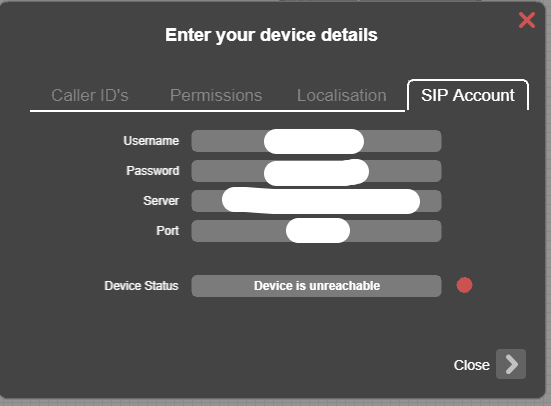
name (name or id), user (username), password (password), server (server) and port (port).
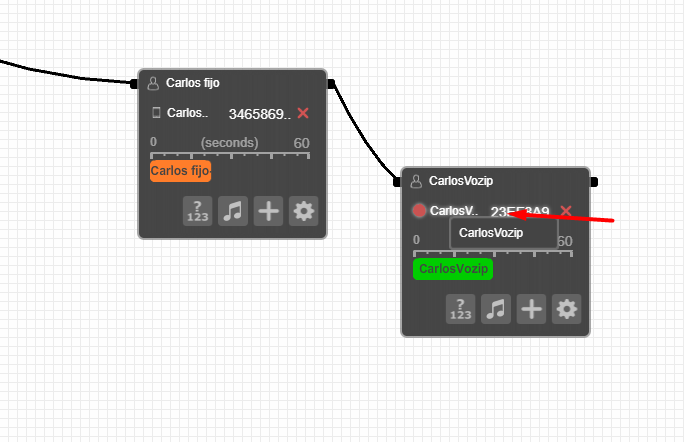
How is this data obtained? , go to the virtual PBX and in the object you created VoIP (sip) in the sip account tab:
6.2 QR Code
Or from:
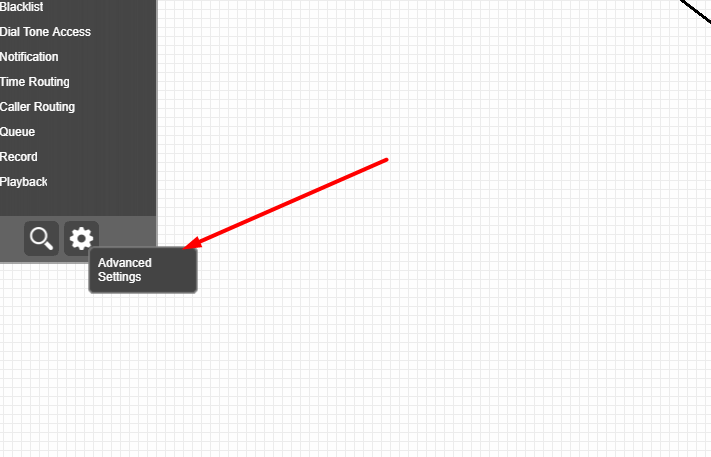
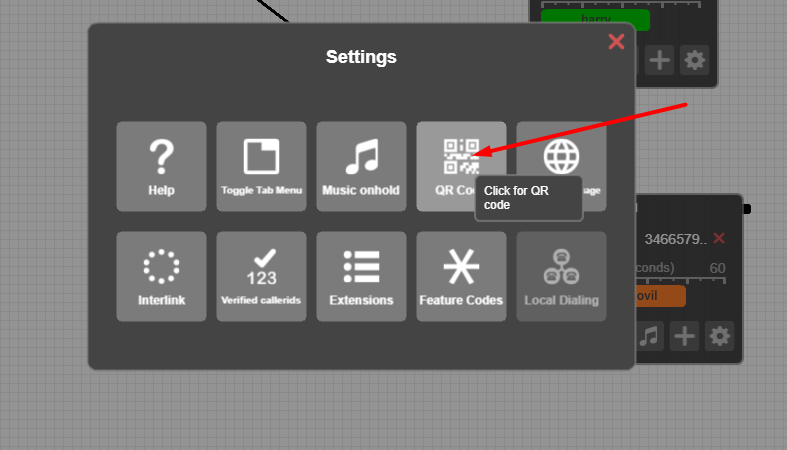
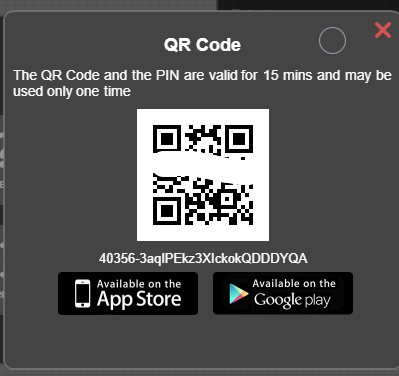
Proceed to scan the code from the app.
7. Configure the apps
Call Center
Go to No sip accounts
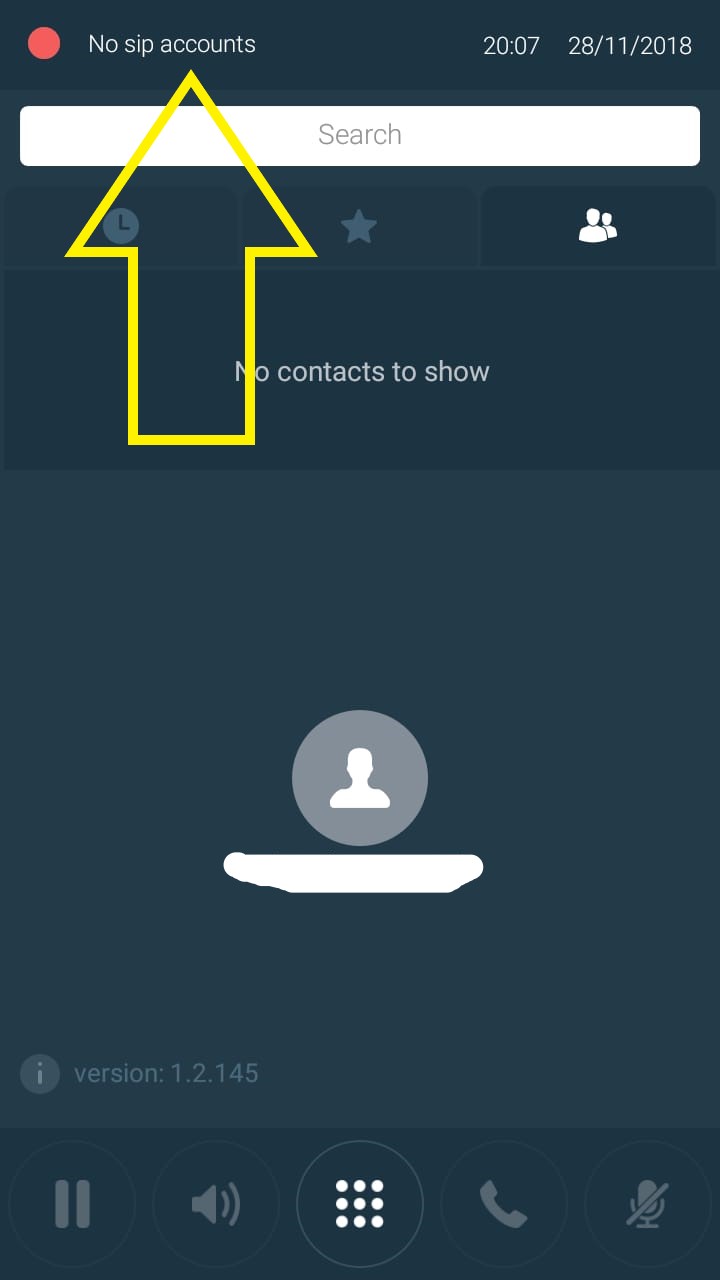
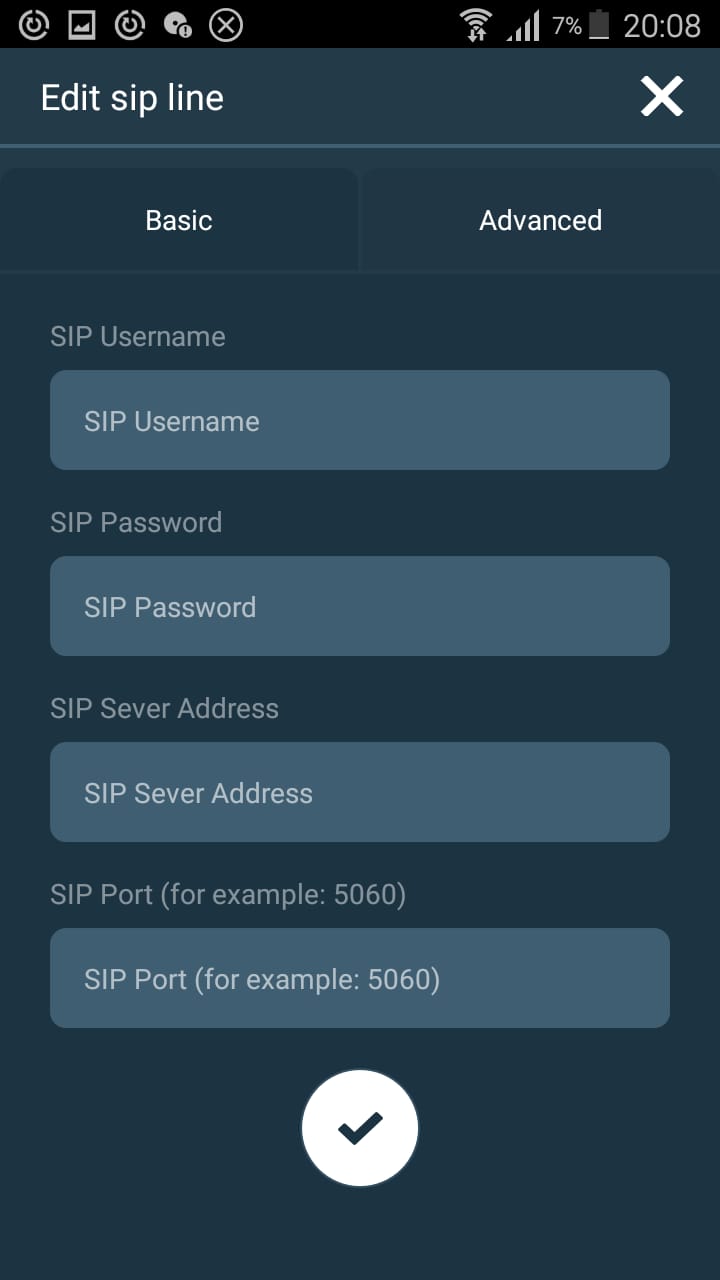
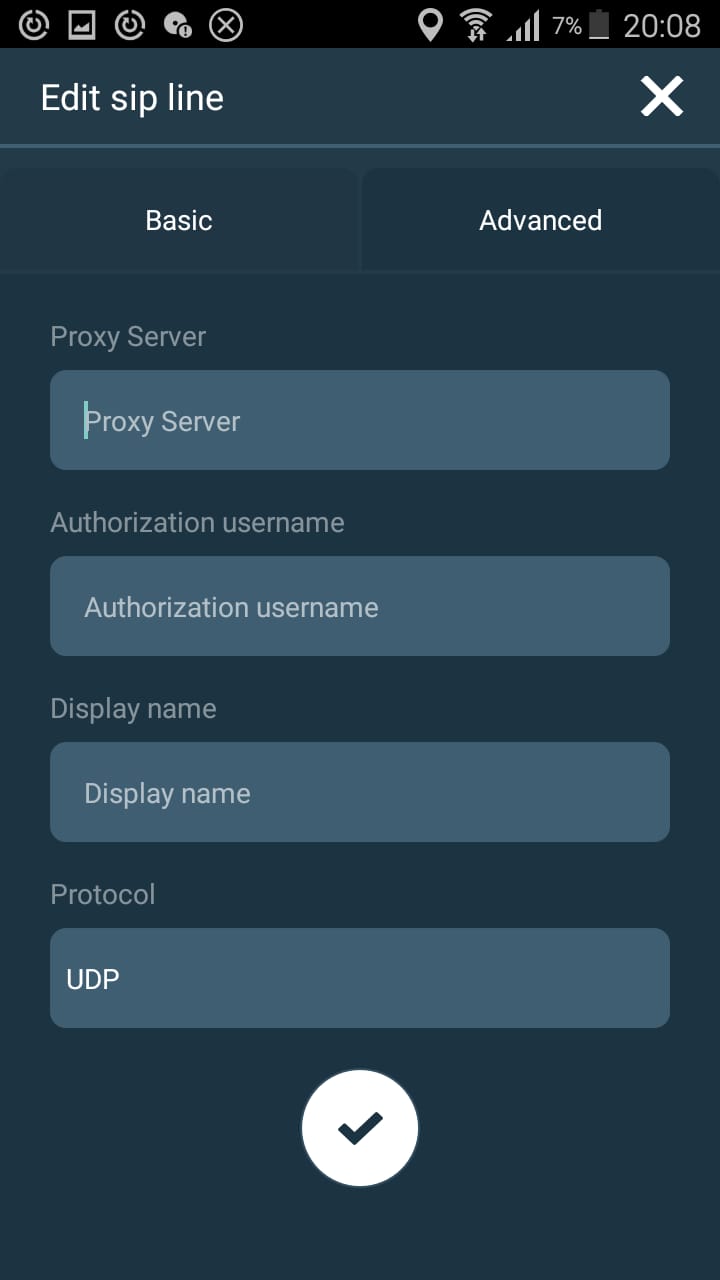
Finished
Phone Systems
Go to Device Authorization
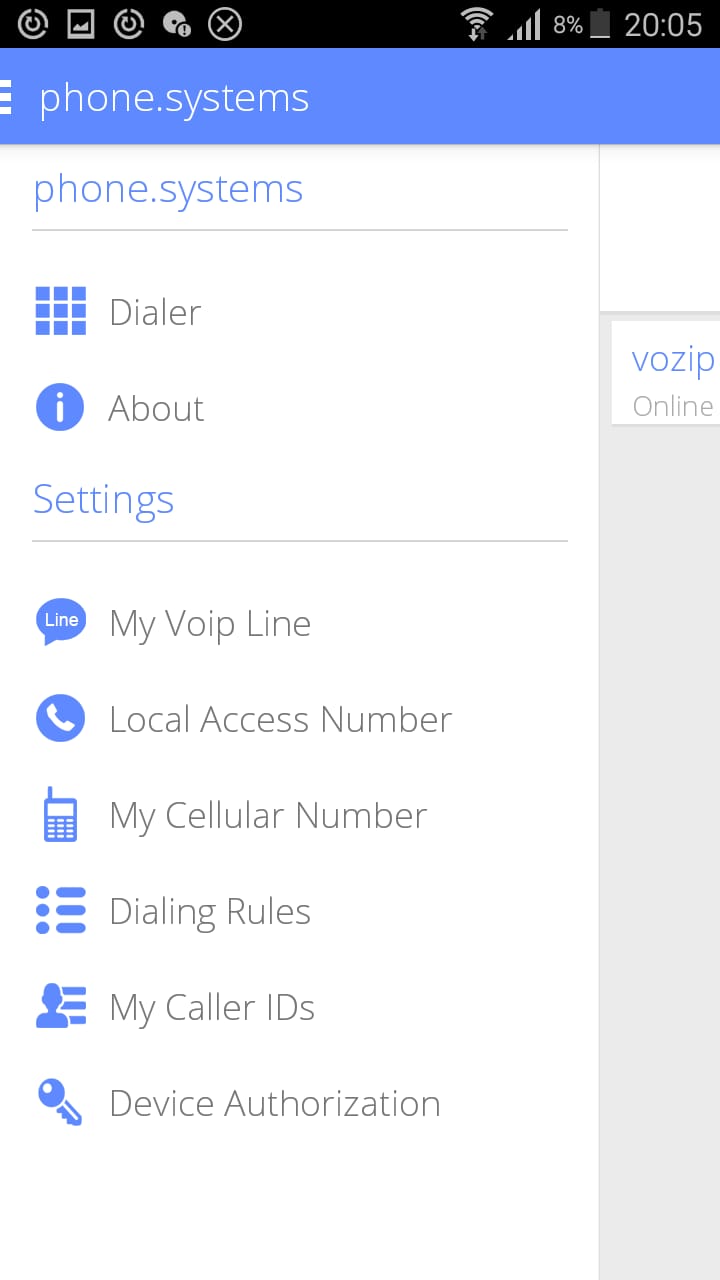
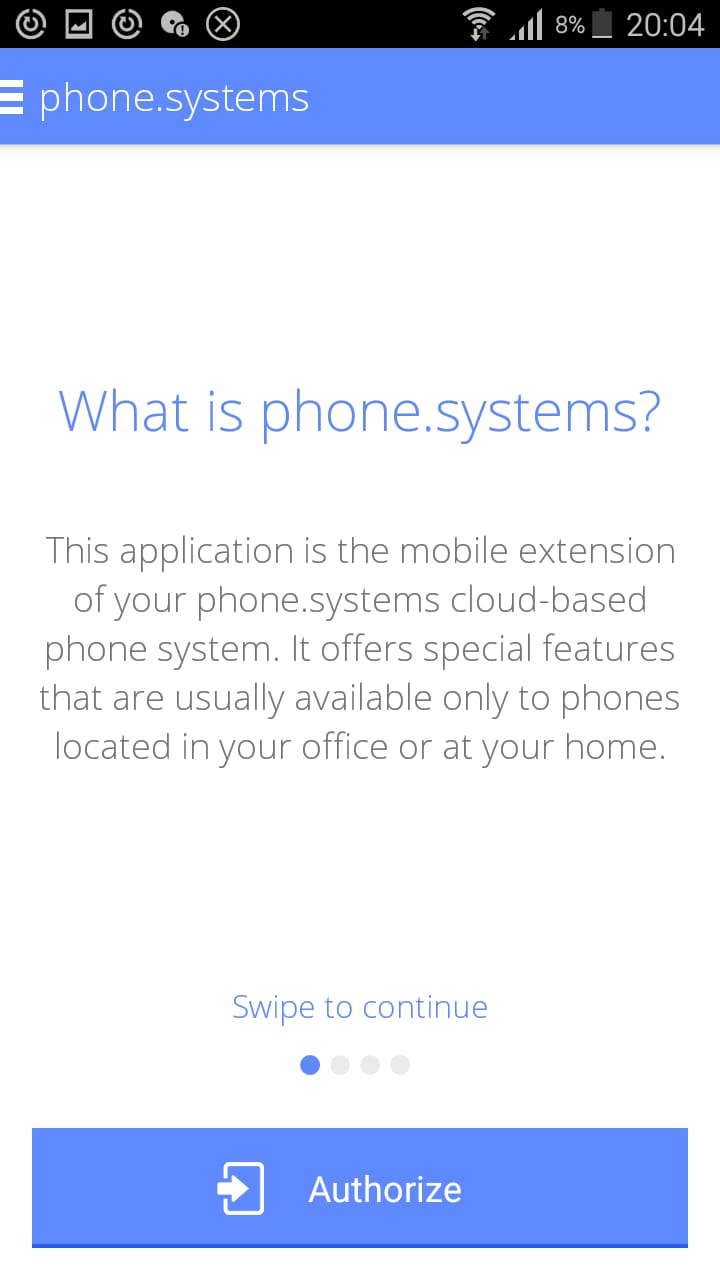
Scan code from step 6.2
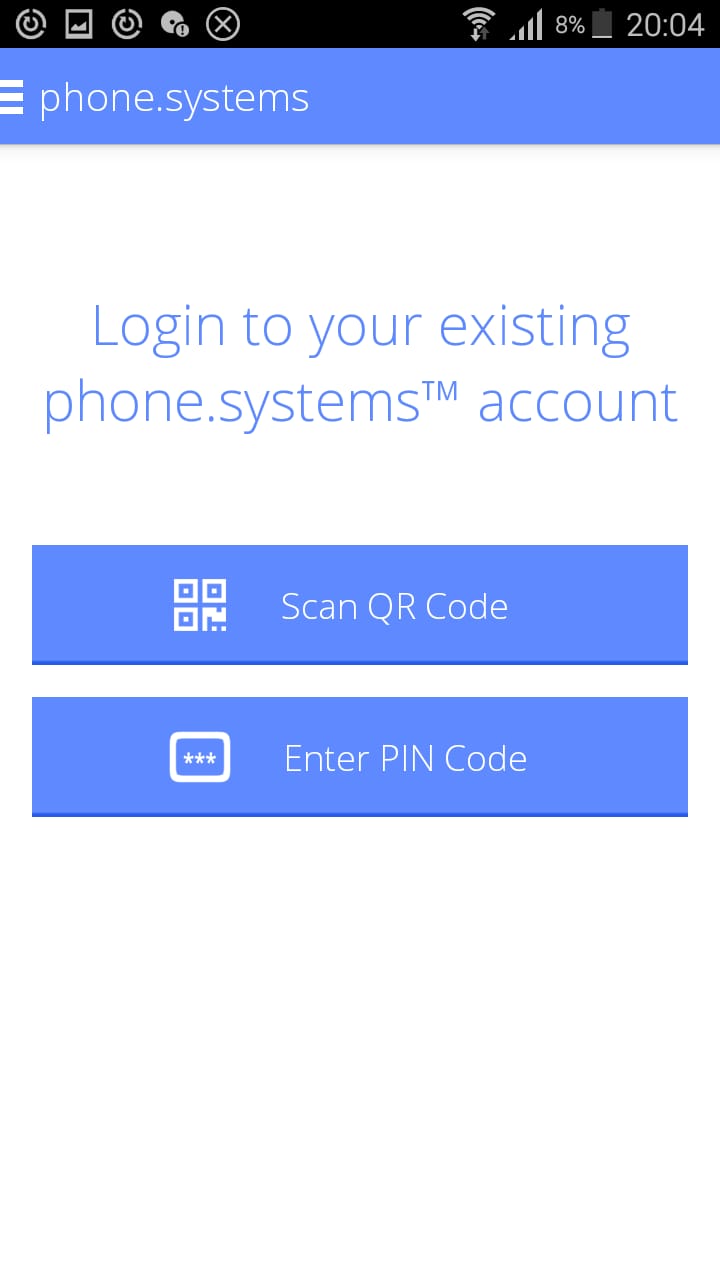
Verify that you are online
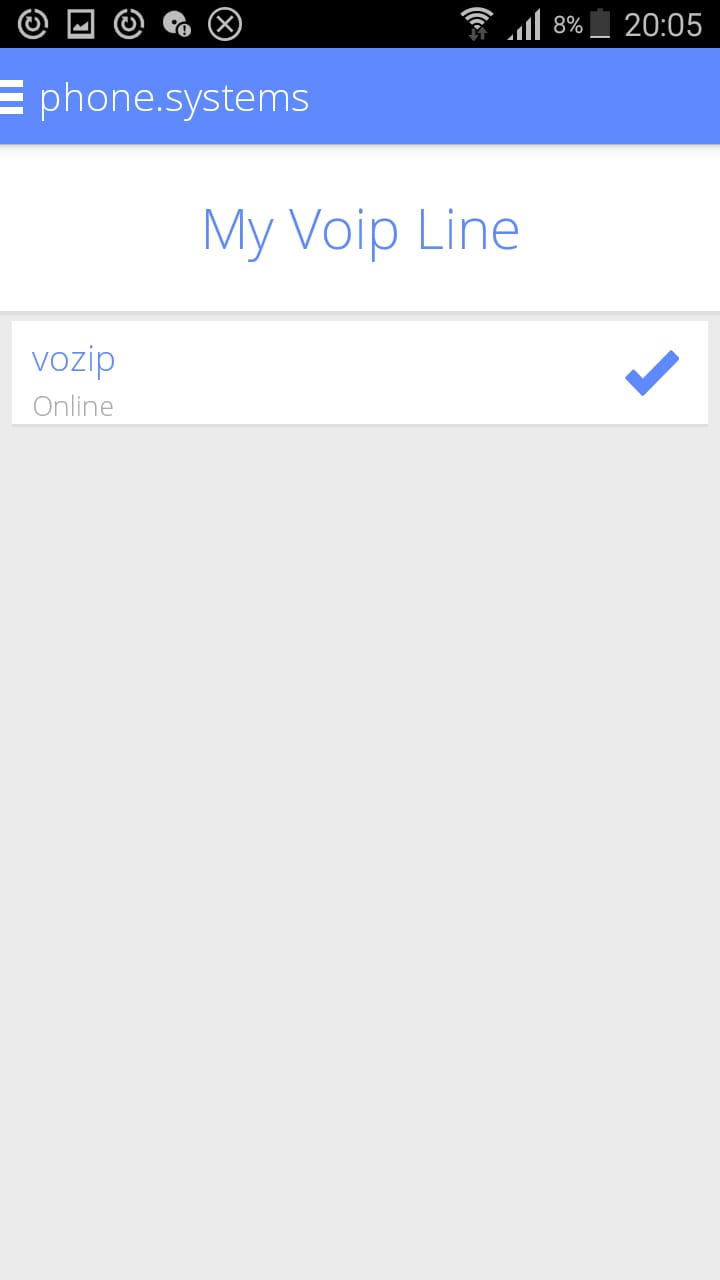
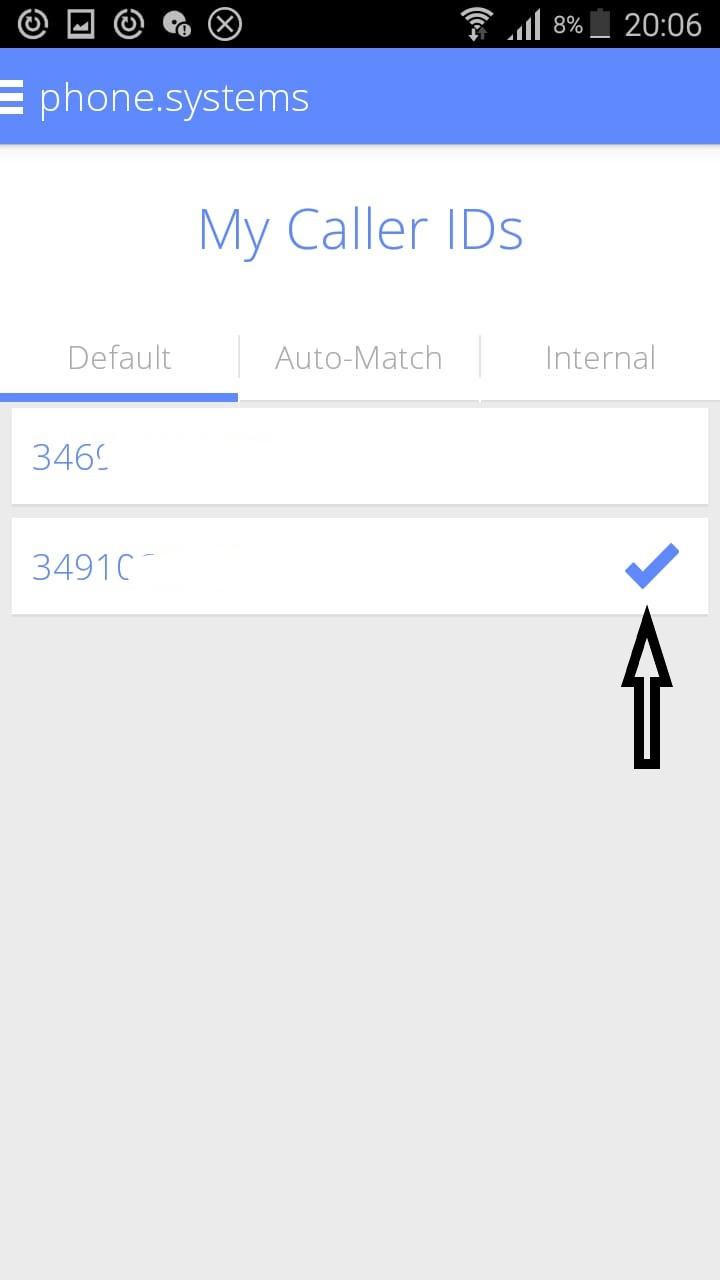
And let it be the outgoing number
That’s all
Very important remember:
- To make calls you must place all the international and national prefixes of the country you are calling in front of the number, even if you are in the same country, for example if you call Spain, put 346……
- You must have an internet connection on the device.