

Set up Zoiper for outgoing calls
Learn how to set up Zoiper with your SIP username, password and server, using the screenshots from the original tutorial.

This is a translation of an earlier article. Prices, coverage, promotions and application screens reflect the original publication and may have changed. Check current availability, requirements and rates before ordering.
Historical tutorial: the interface may differ in current Zoiper versions. Use the SIP credentials and transport settings supplied for your account. Current Zoiper account setup guide.
In this tutorial we will teach you how to configure and install the Zoiper application to make calls from your Virtual Landline.
OPTION YOU DO NOT HAVE THE APP INSTALLED:
- Download the Zoiper app in the app store and install and open it.
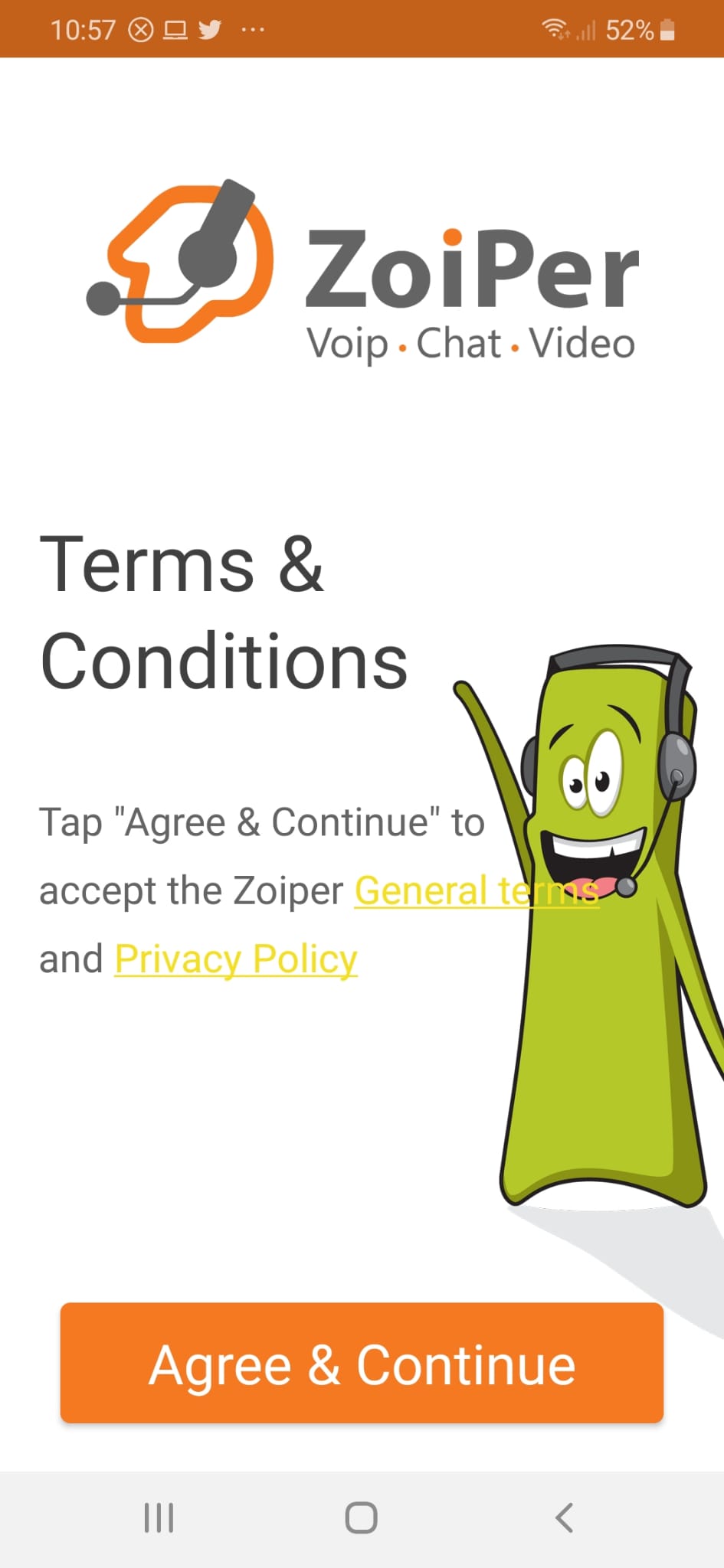
- Accept the conditions
- Copy and paste the given values for the app configuration
USERNAME
PASSWORD
SERVER - Account setup press create an account
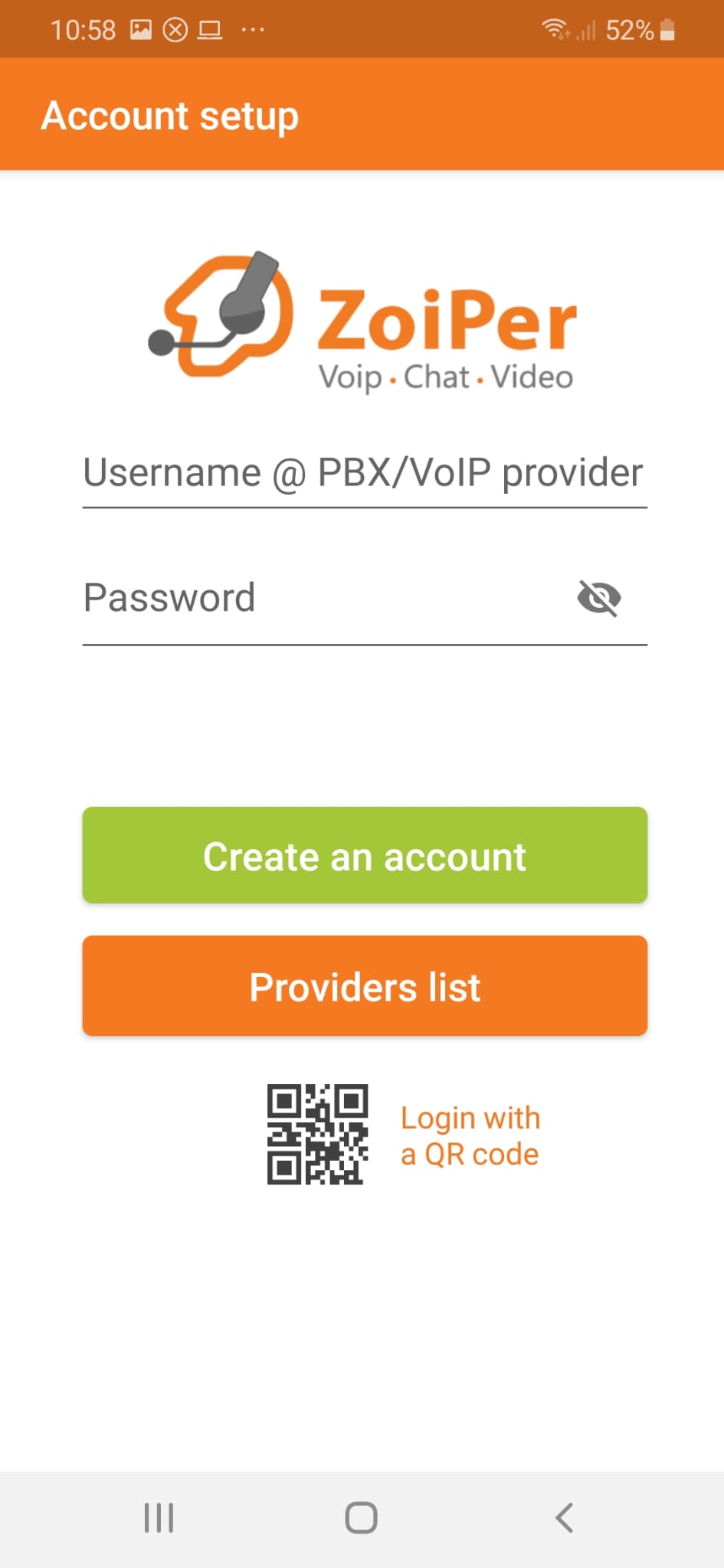
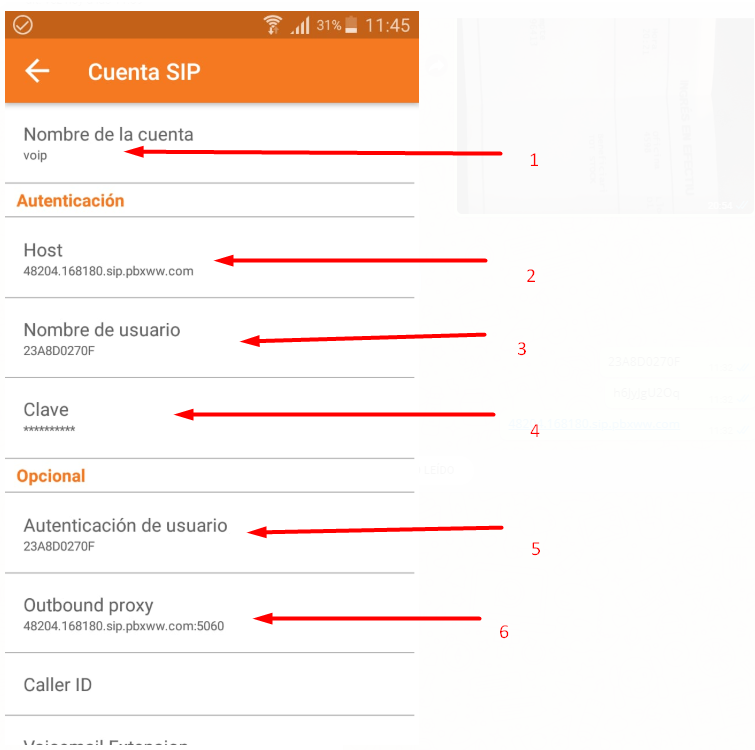
- Enter the username and password provided in step 3
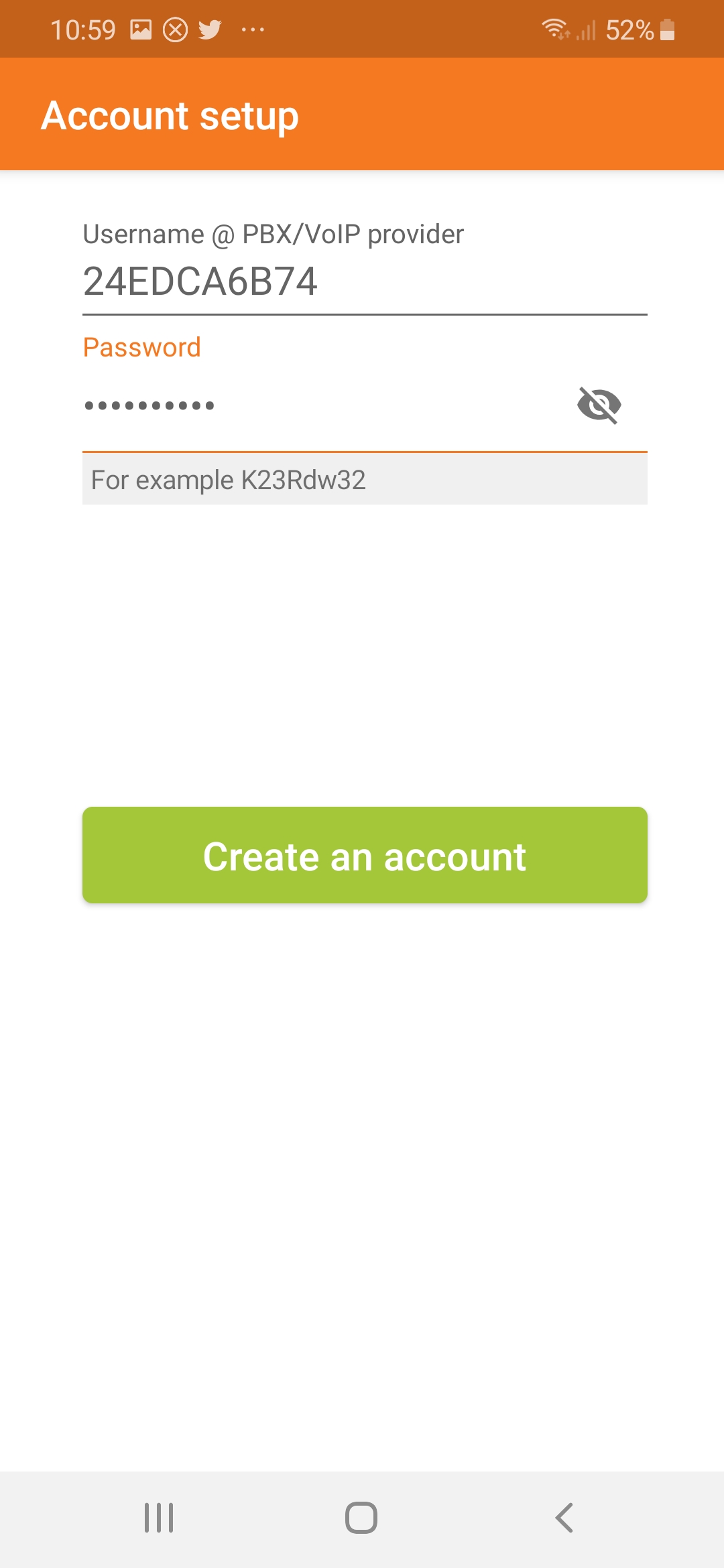
- Put server given in step 3 (be careful to put exactly what is passed without anything in front)
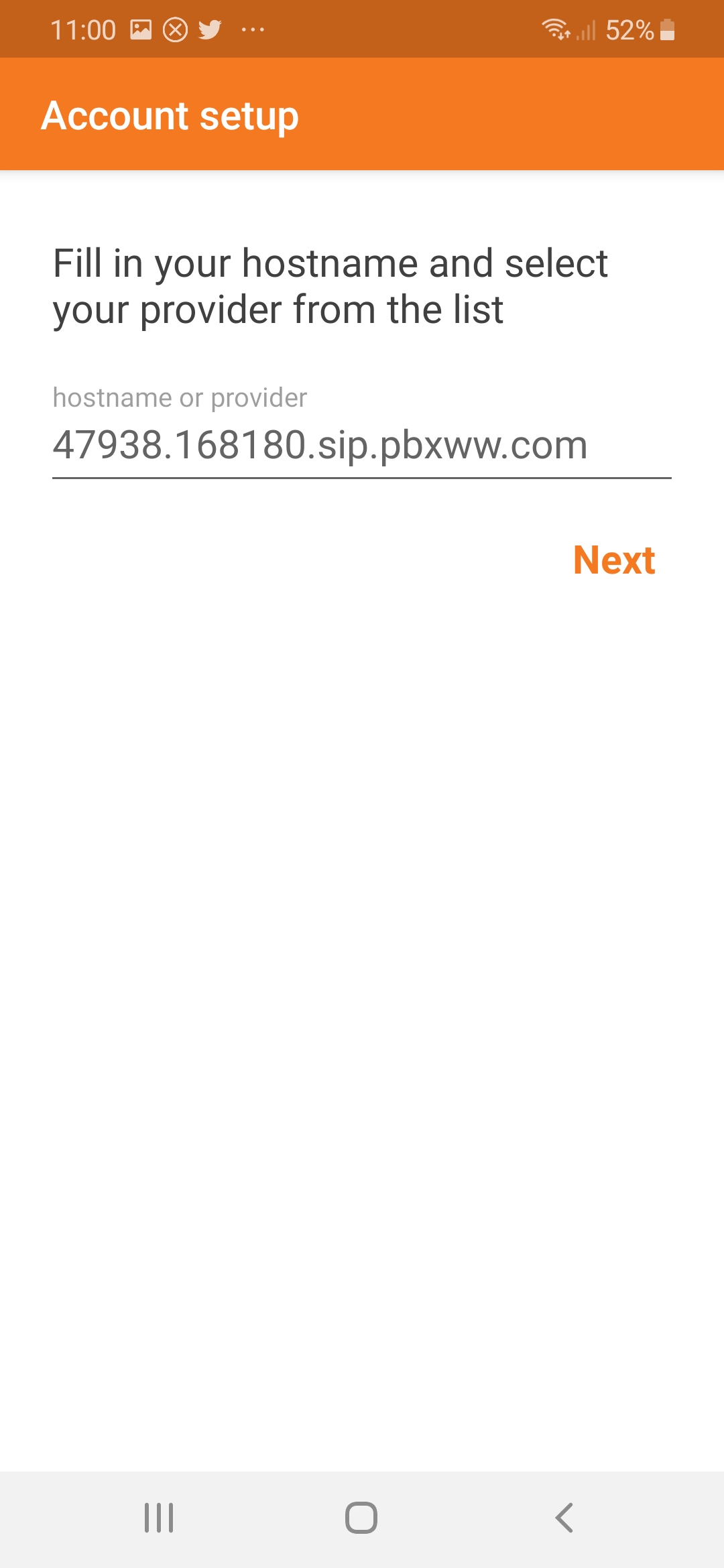
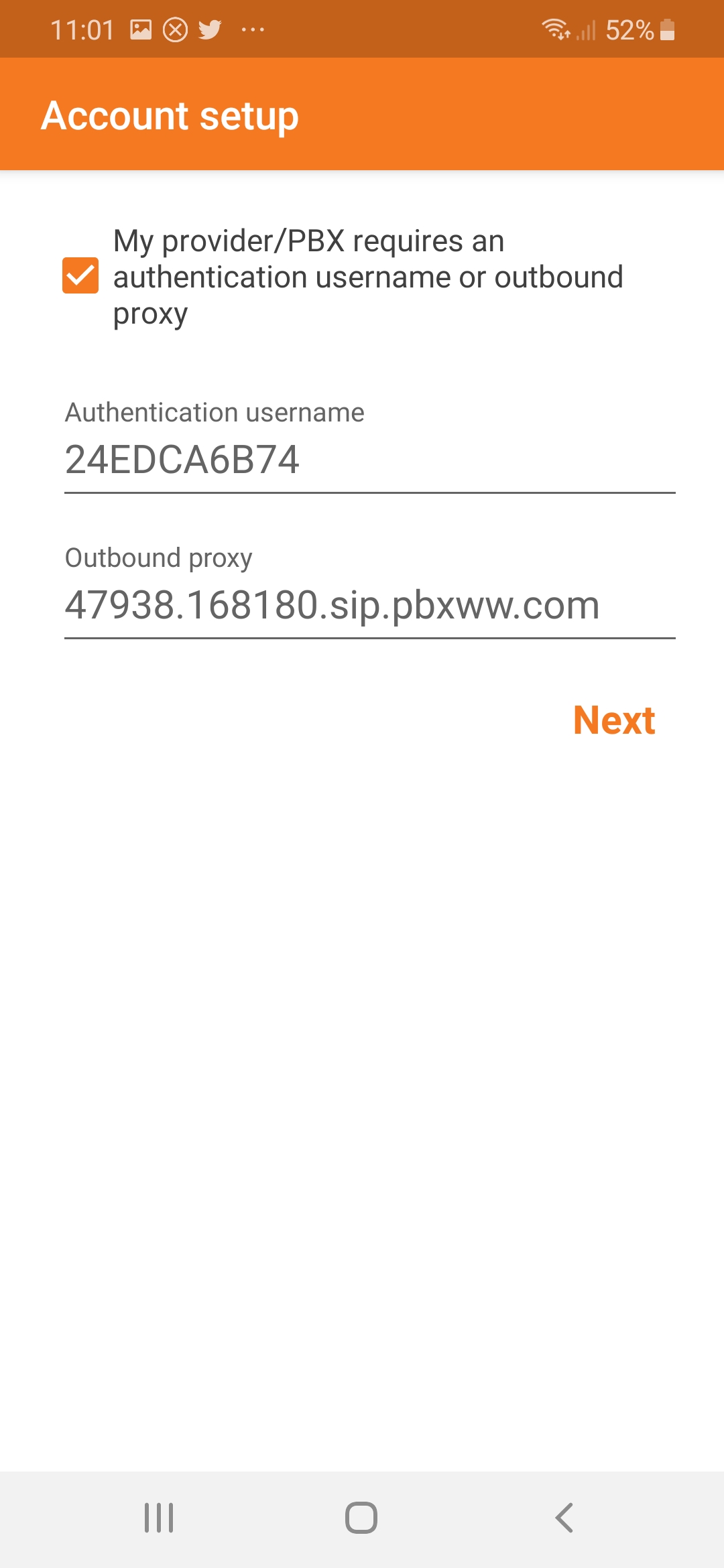
- Put given user and server in point 3
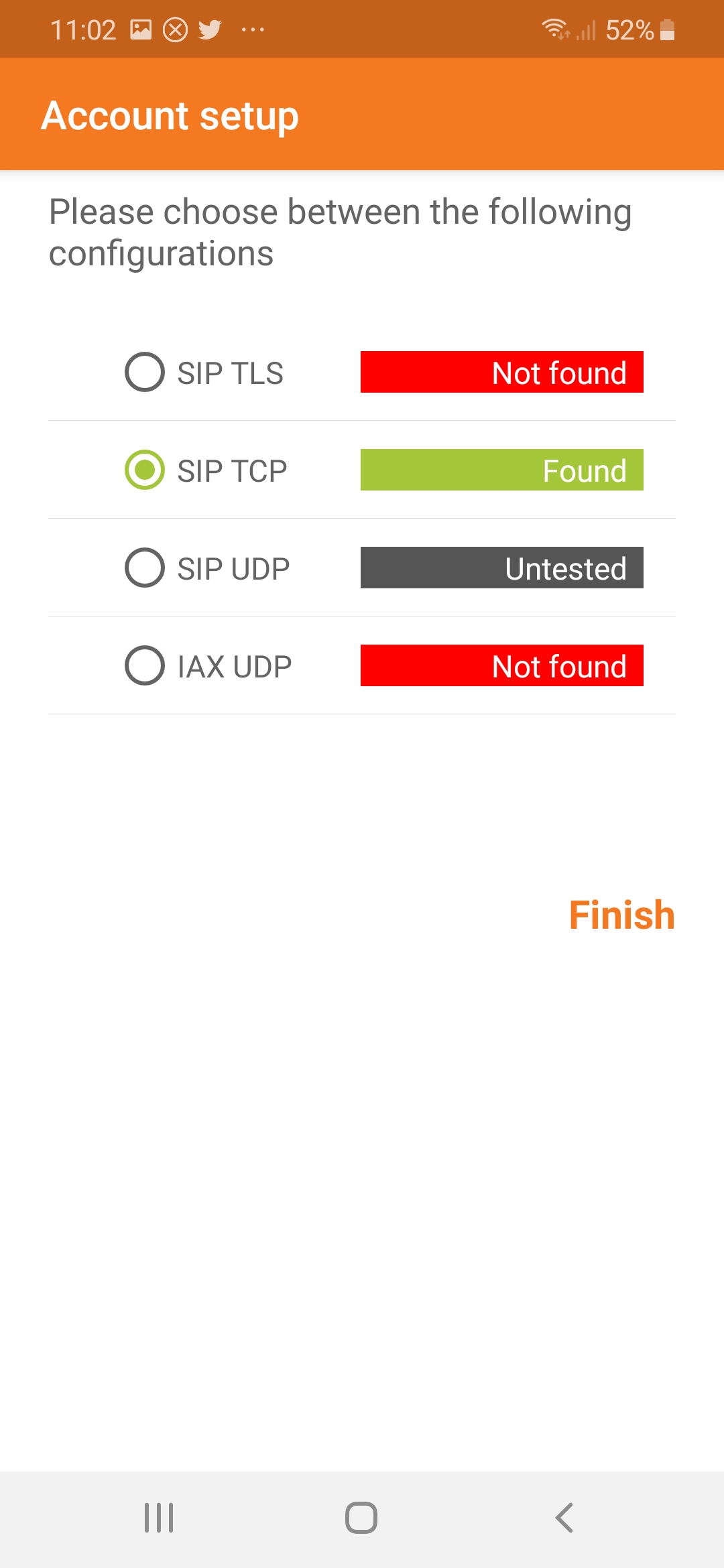
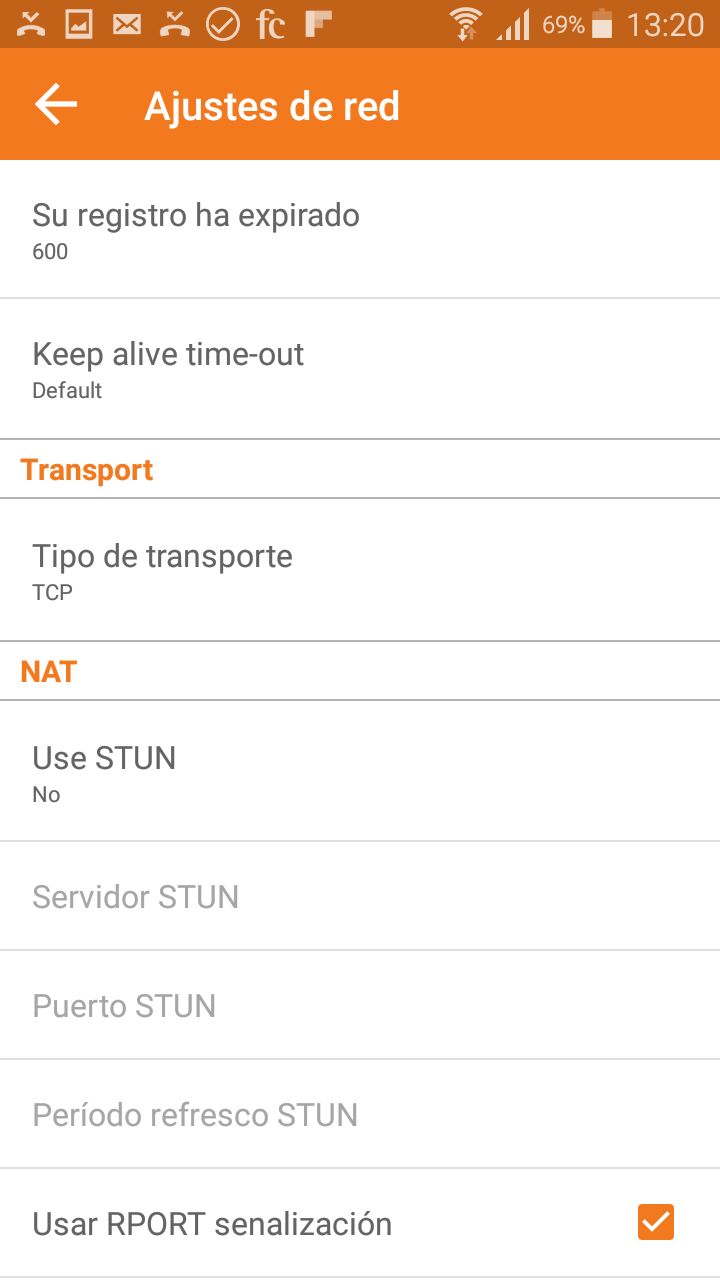
- Here goes TCP network (in general it detects it alone and appears in green)
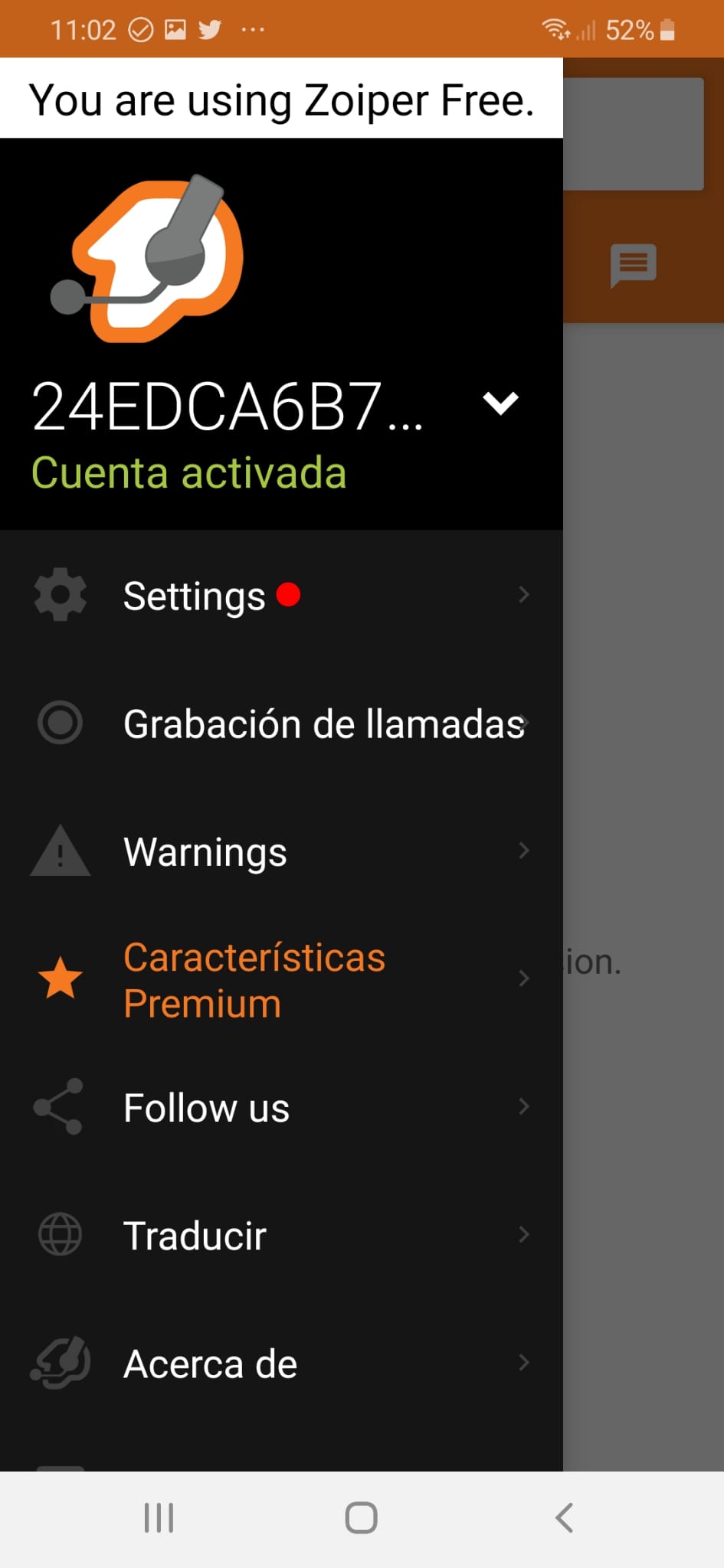
- Working
- Make a call enter country code
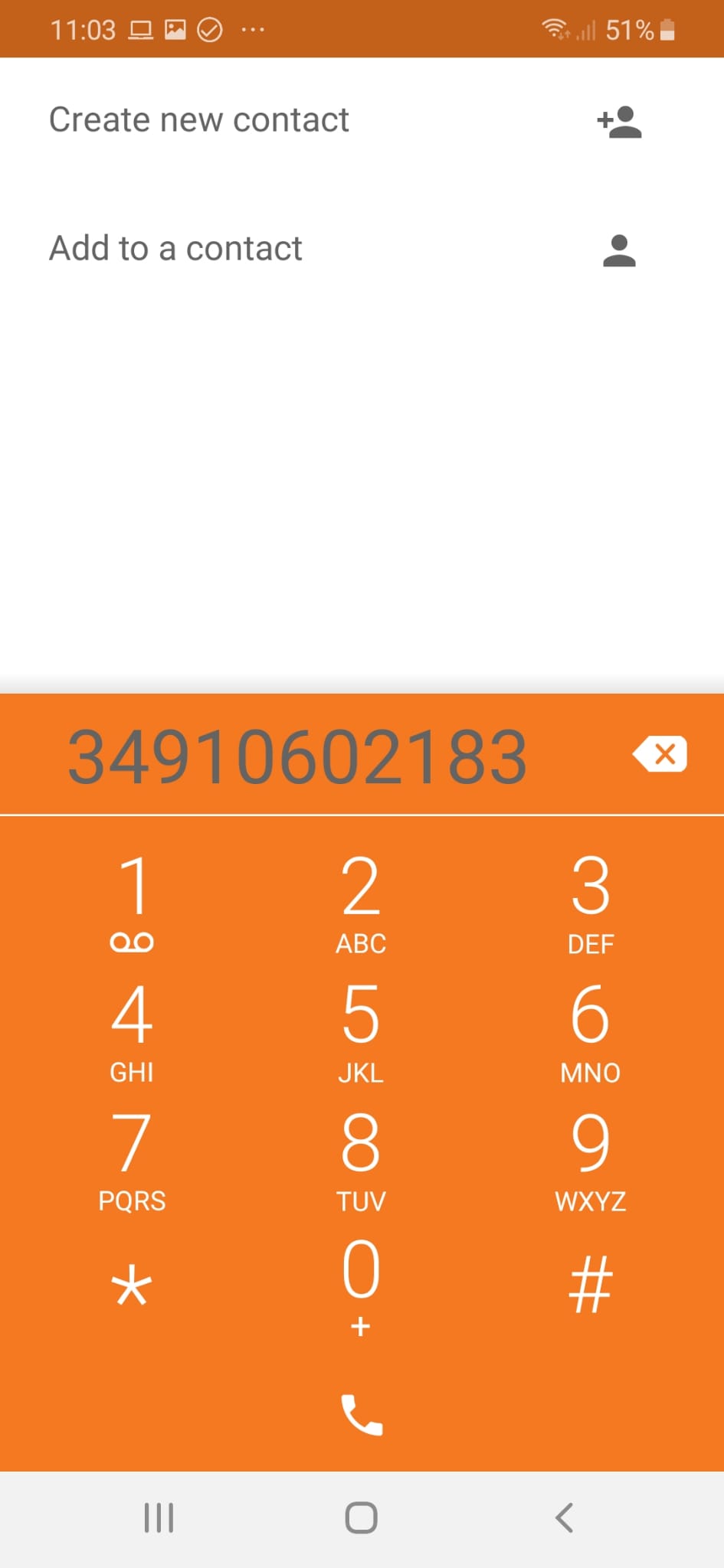
- Thank you for using our service
OPTION I ALREADY HAVE THE APP INSTALLED
To configure your virtual number to be able to make calls from the Zoiper app:
- Open the Zoiper app
- Go to SIP account settings (Settings)
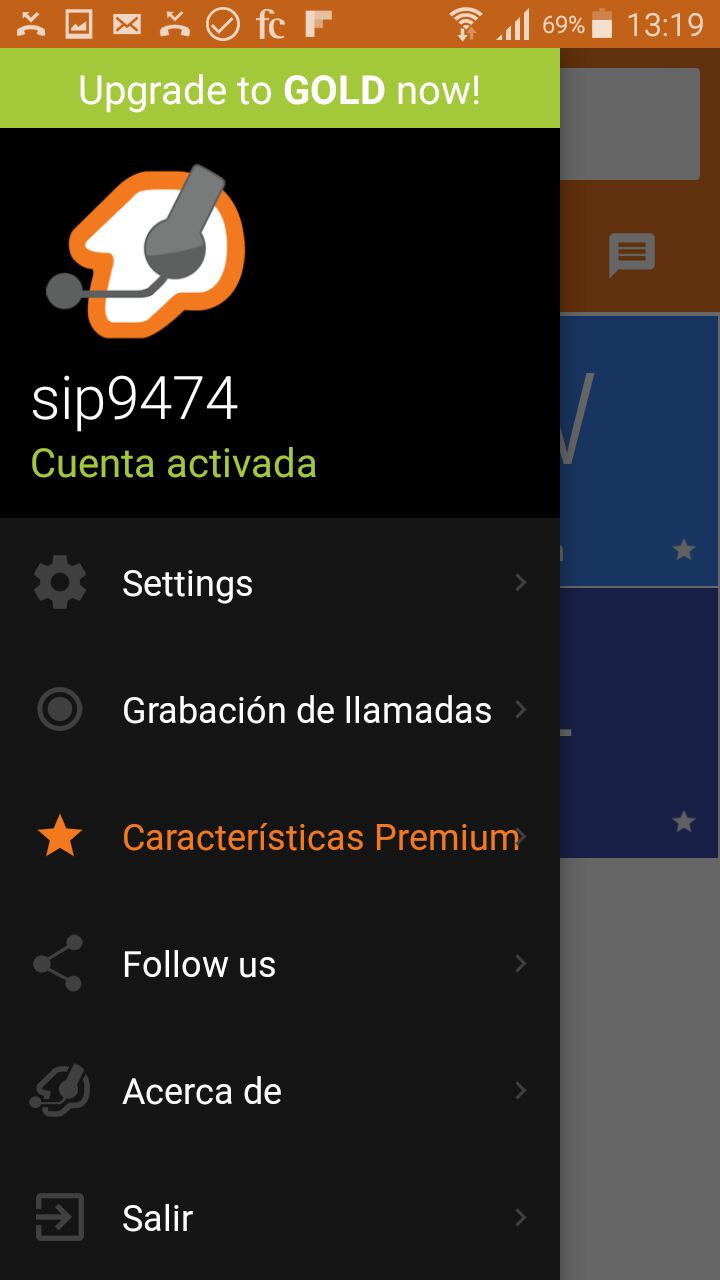
- Enter the details supplied in step 3 above. You can choose any account name.
- Check that the network transport setting is TCP.
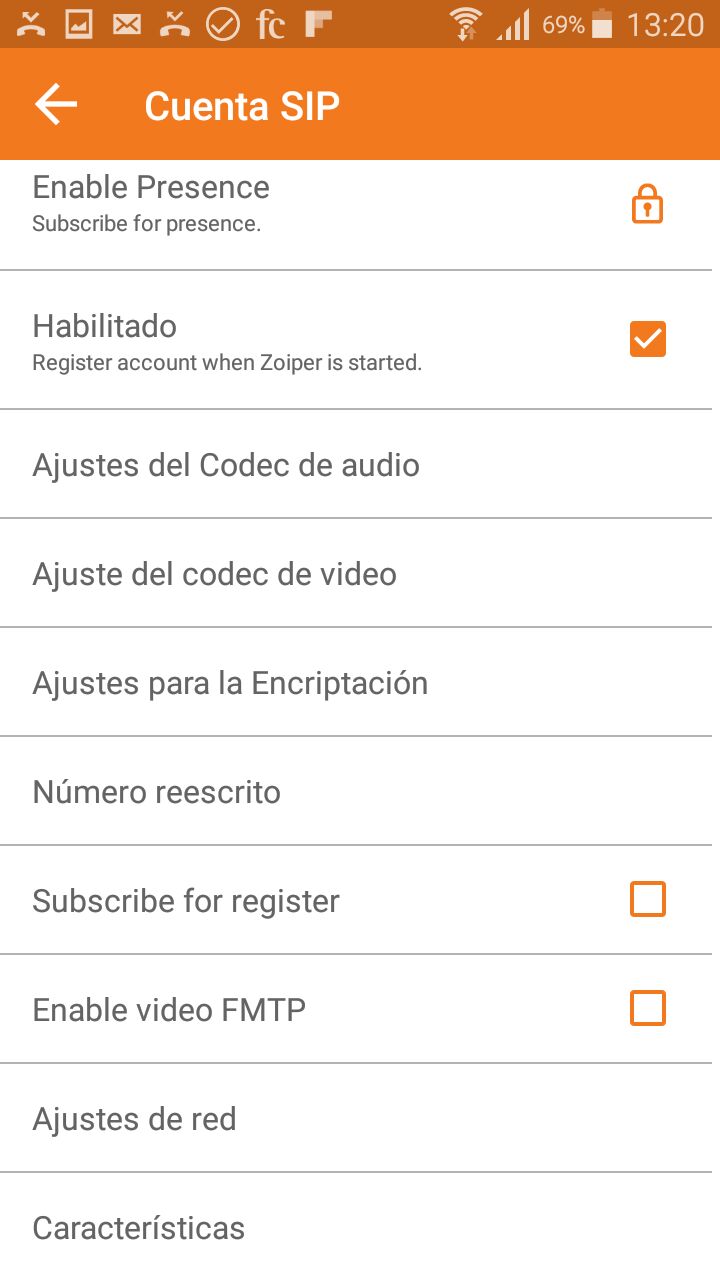
- The account should now appear active in green.